Step 1: Configure Template Structure
Last updated: July 30, 2026
Configure the template structure (Step 1)
Shape the template's checklist skeleton before anything runs. When you create a template from an Excel (create the close template (Step 0)), Artifact extracts a first-pass checklist — sections grouping items — from your workbook. Step 1 is where you review and edit that extraction: add, remove, and reorder sections and items; decide whether each item is done by AI or is a Manual task; and set the dependencies between items so the checklist matches how your firm actually closes (templates & setup, the prebuilt item catalog). This is the template's structure only; working papers, their mapping, and the per-item prompts come in Steps 2–4.
1. Review the extracted structure
Scroll through the sections and checklist items Artifact extracted from your workbook and confirm each was picked up correctly. Use Add section to create a new group and Add item to add a checklist step within a section.
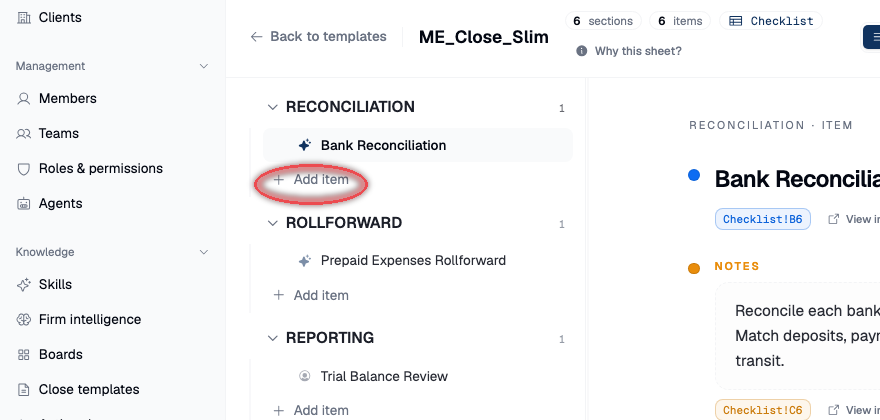
NB: Your sidebar may look different — this page lives inside a close-template editor.
2. Trace an item back to your workbook
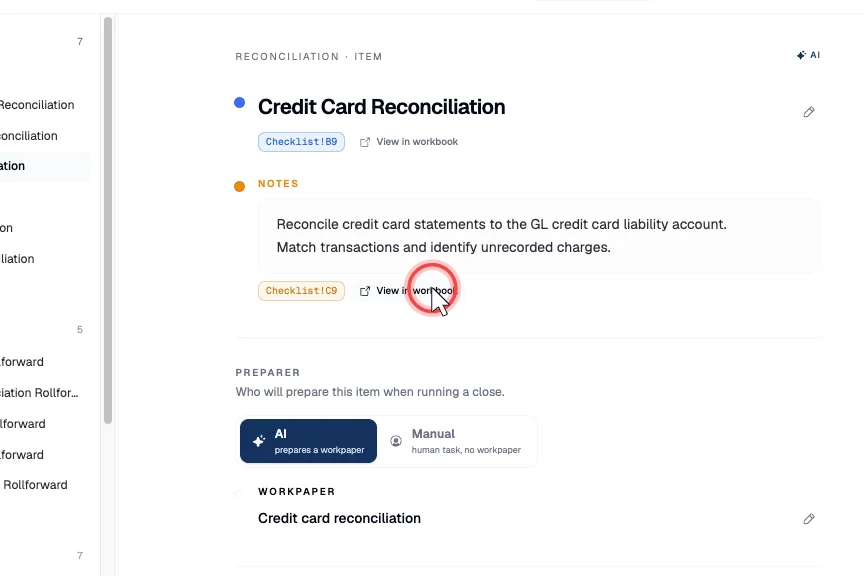
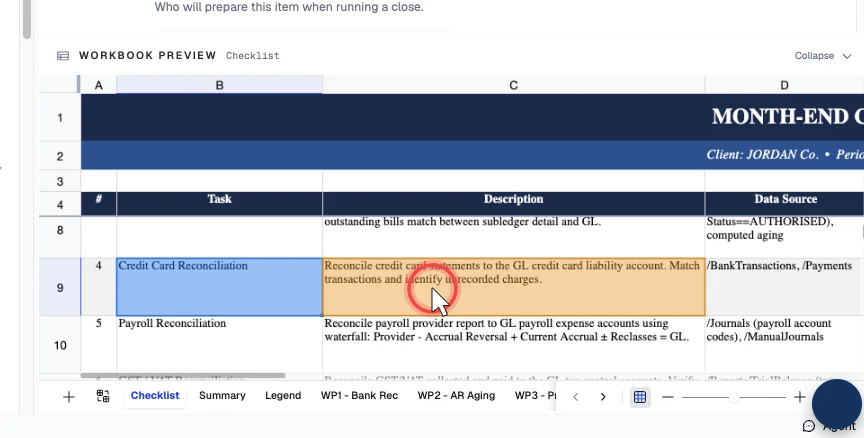
For any item, you can jump to where it was extracted from in the source workbook — useful to confirm the extraction landed on the right row before you edit it.
3. Set each item's preparer — AI or Manual
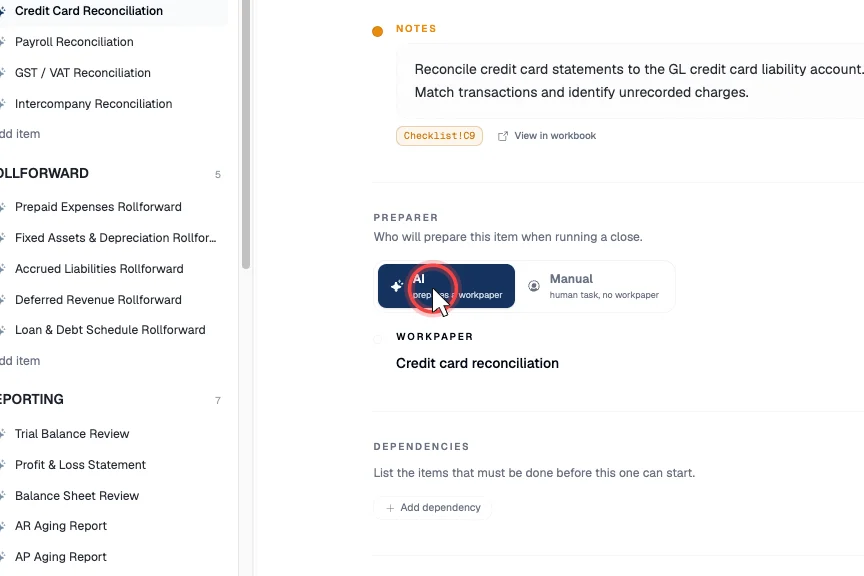
Artifact makes an initial call for every item; open an item and use the preparer toggle to set it:
- AI — the agent will autonomously complete a mapped working paper, or build one in the learnt format if no template is provided.
- Manual — the agent will not build a working paper. The task is done by a human elsewhere but is still tracked in Artifact.
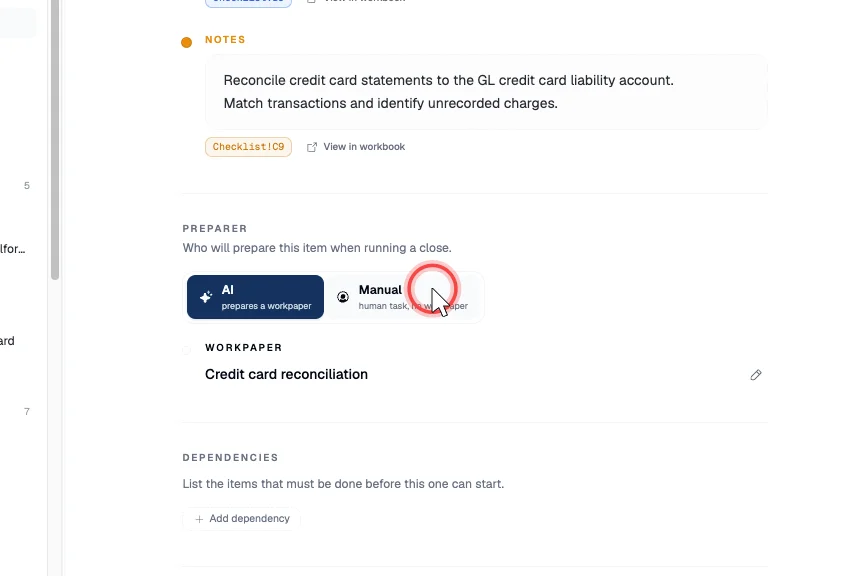
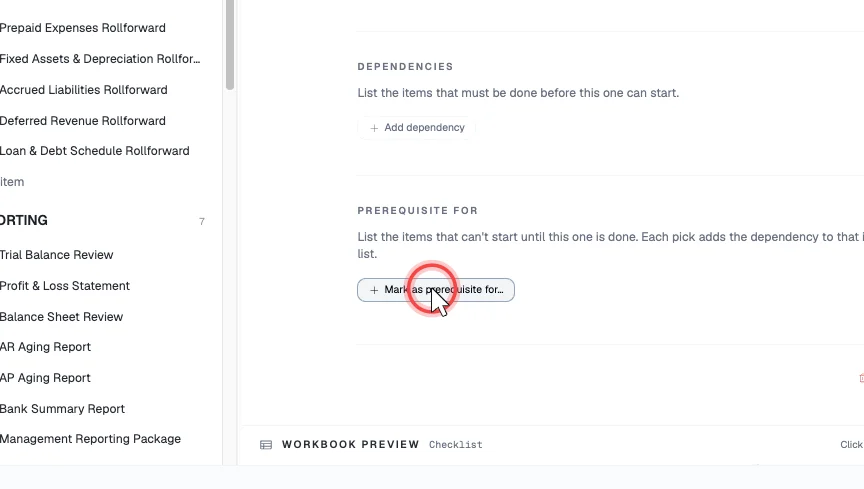
4. Set dependencies and prerequisites
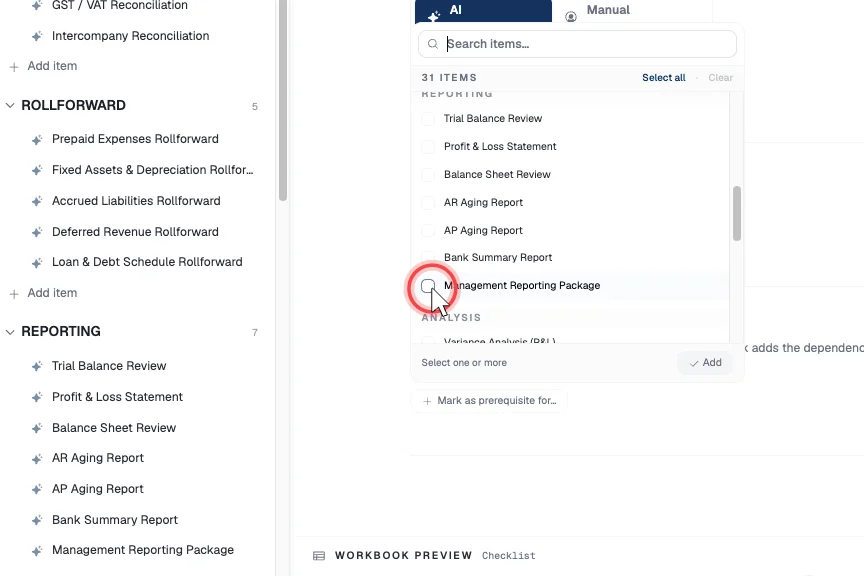
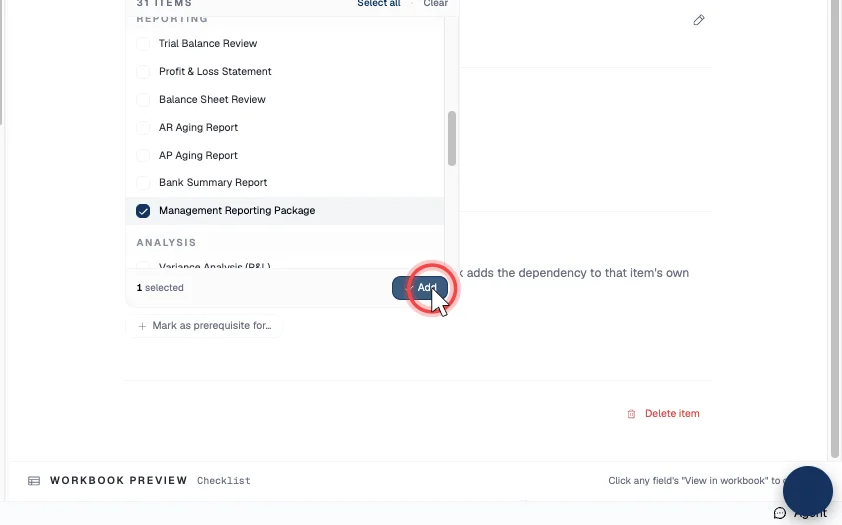
For each item you can declare its order relative to others:
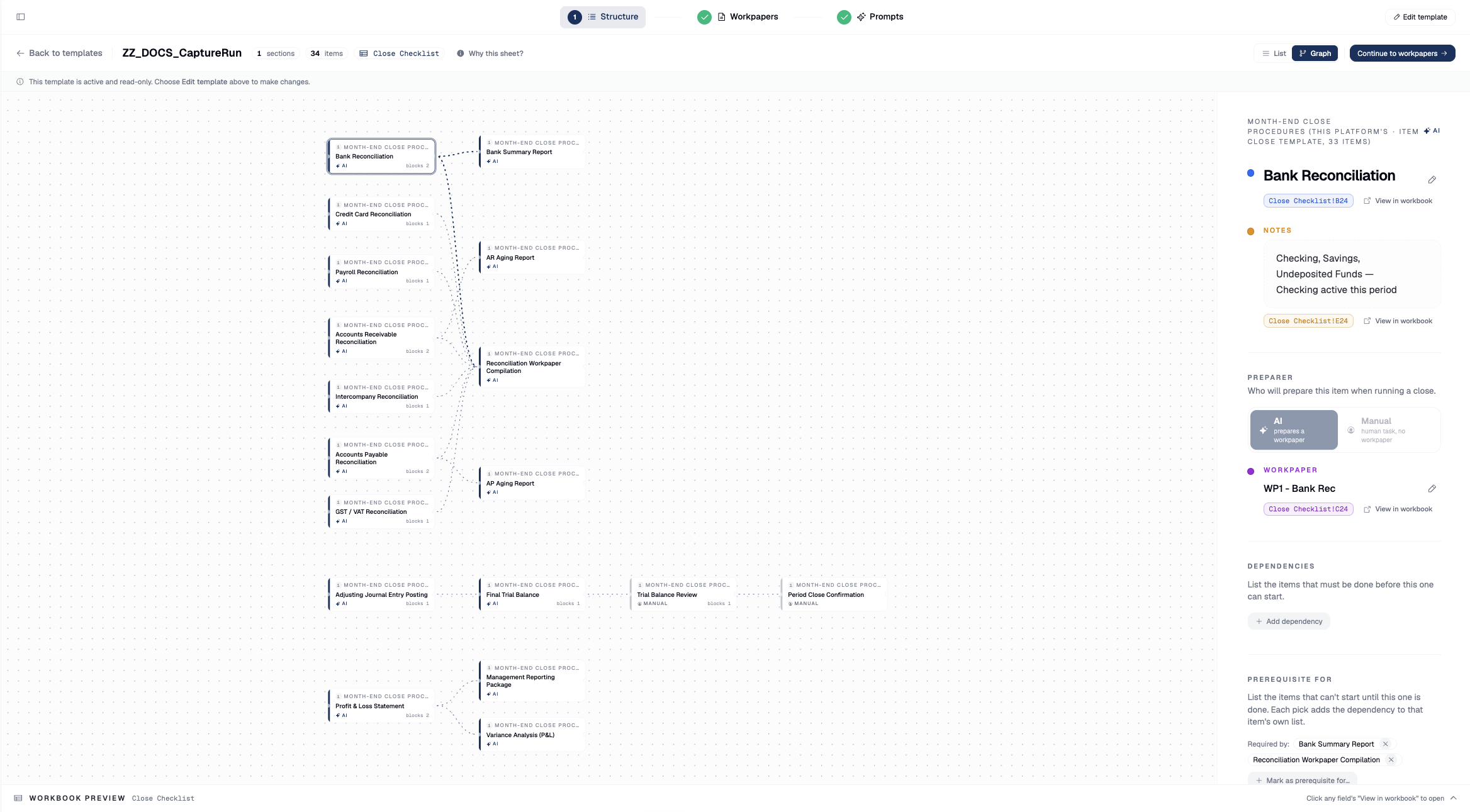
- Dependencies — the items that must be completed before this one runs automatically.
- Prerequisite For — the items that cannot run automatically until this one is completed.
5. See the order as a graph
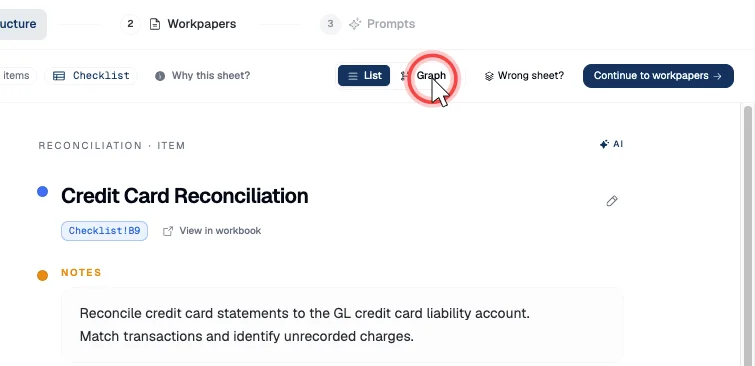
Switch to the Graph view for a visual of the dependency chain across the whole checklist; the close runs top-to-bottom in dependency order — reconciliations before variance/flux, sign-off last.
6. Continue to workpapers
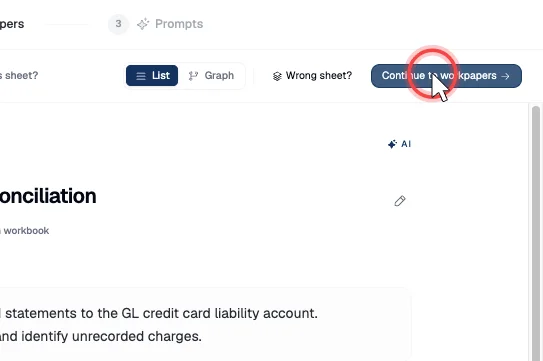
When the skeleton, preparers, and order are right, click Continue to workpapers to advance to Step 2.
Next steps
Good to know
- Prerequisite: a draft template created with the "From an Excel I already use" build source, with extraction finished — the structure-review screen is the landing point after extraction. See create the close template (Step 0).
- Structure ≠ content. Here you decide what steps exist, who does them, and in what order. What each step reads (working papers) and how the agent does it (prompts) are Steps 2–4.
- Items are close steps. Each checklist item becomes a standards-grounded close step — the same build-once catalogue idea as the prebuilt item catalog; the whole checklist is the month-end close done the firm's way.