Establish a Month-End Close Template
Last updated: July 30, 2026
Build a reusable month-end close template end to end — the ordered checklist Artifact runs every period, per client.
Establishing a template is a firm-level, build-once-run-for-many-tasks setup. The realistic build path is "From an Excel I already use" — you upload your existing month-end checklist workbook and Artifact extracts a reviewable structure for you.
1. Open the Templates list and click New template
From the Close area, open your firm's Close templates list and click New template in the header. This opens the create form — nothing is created yet.
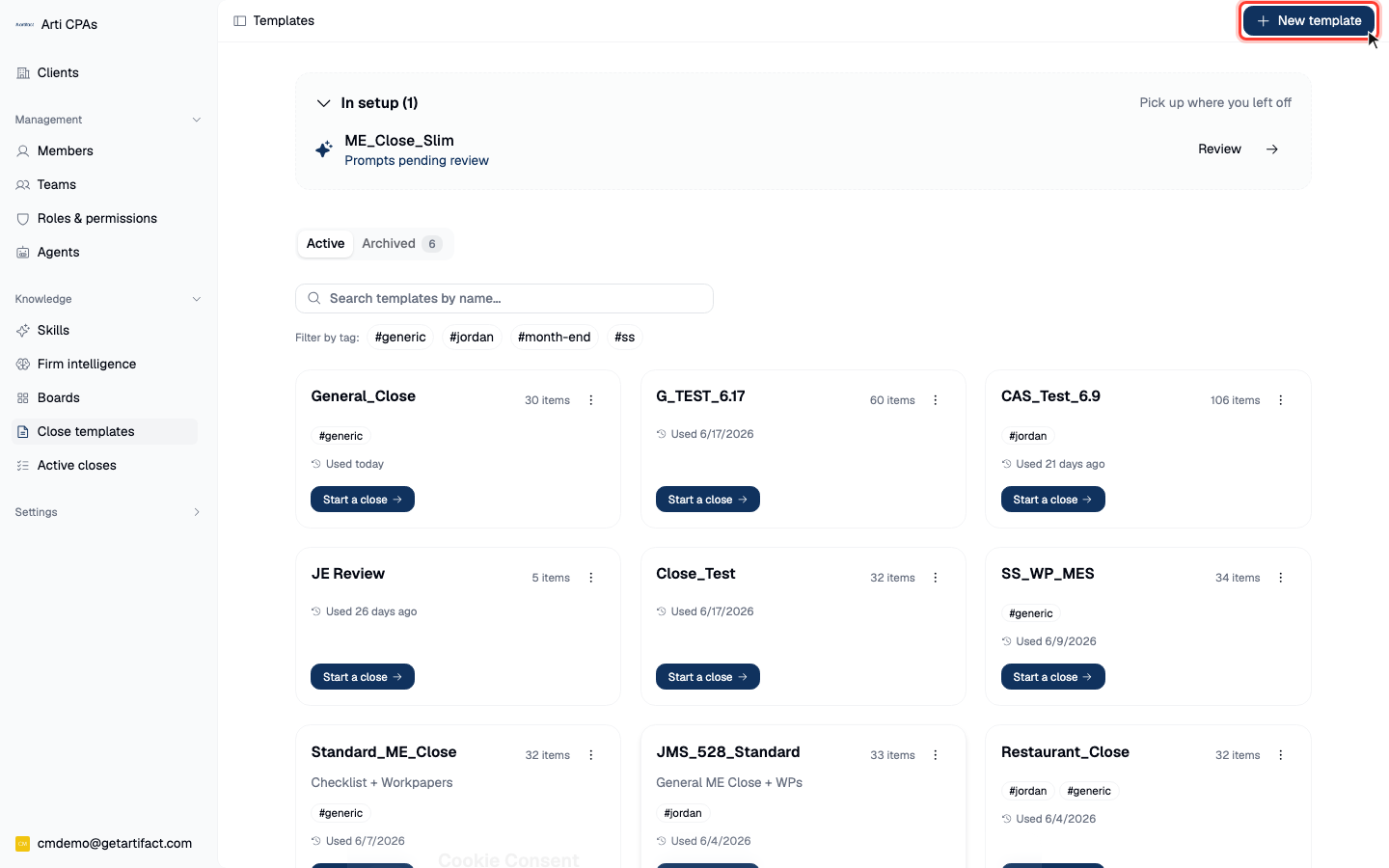
NB: Your sidebar may look a bit different. This page is always under Close Templates.
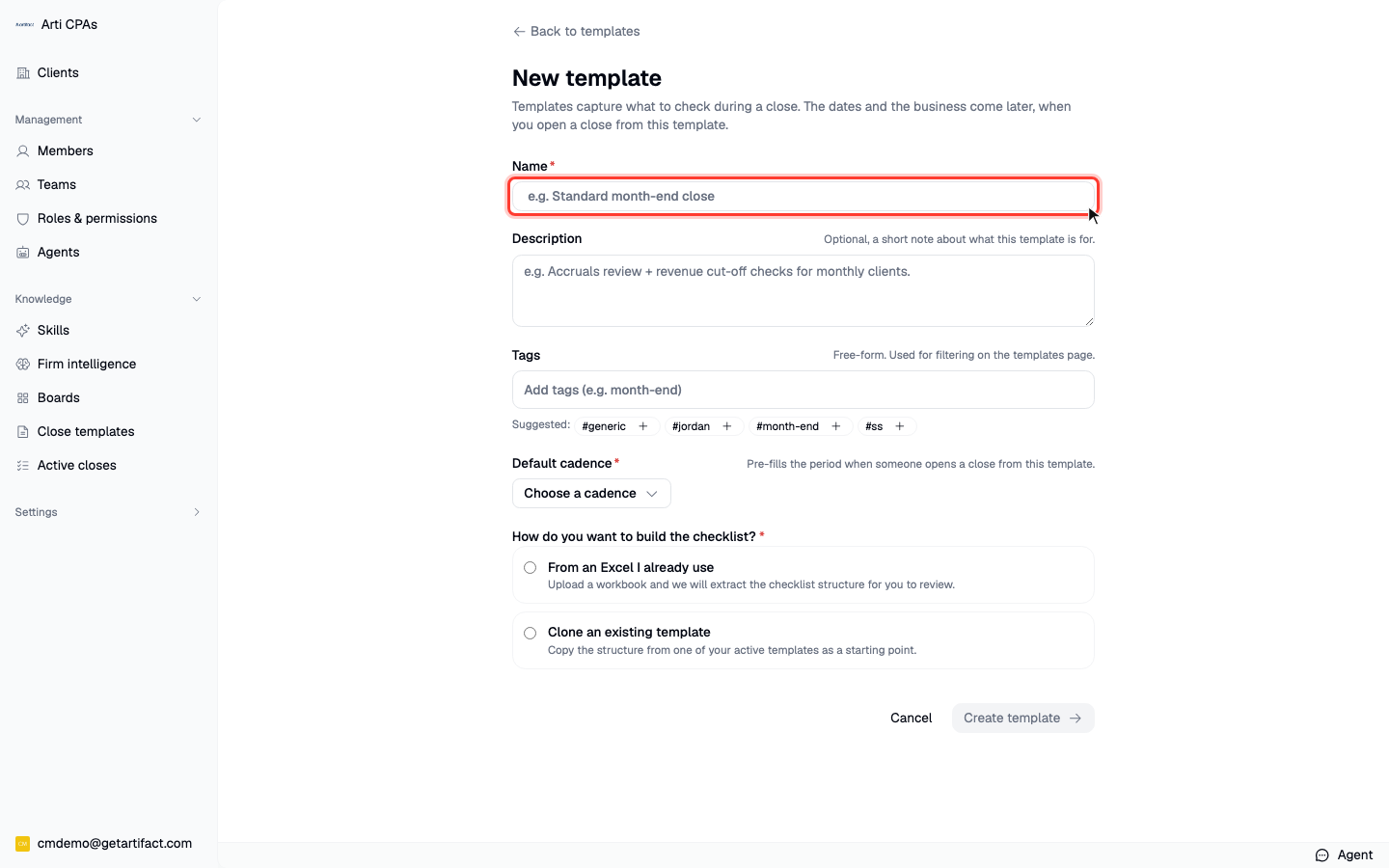
2. Give the template a Name
Type a descriptive name, e.g. Standard month-end close.
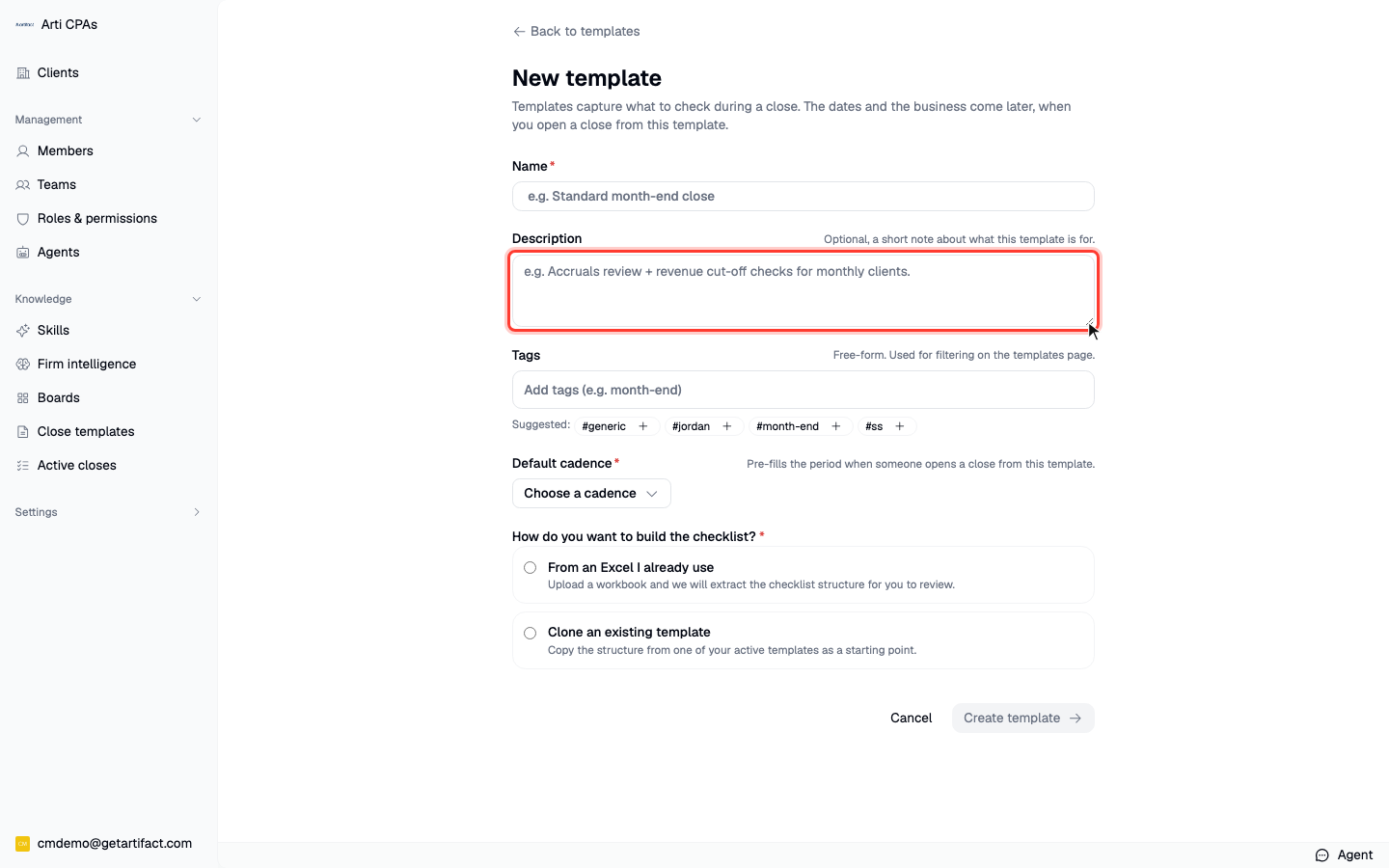
3. Add a Description (optional)
A short note about what this template is for. This is for your reference.
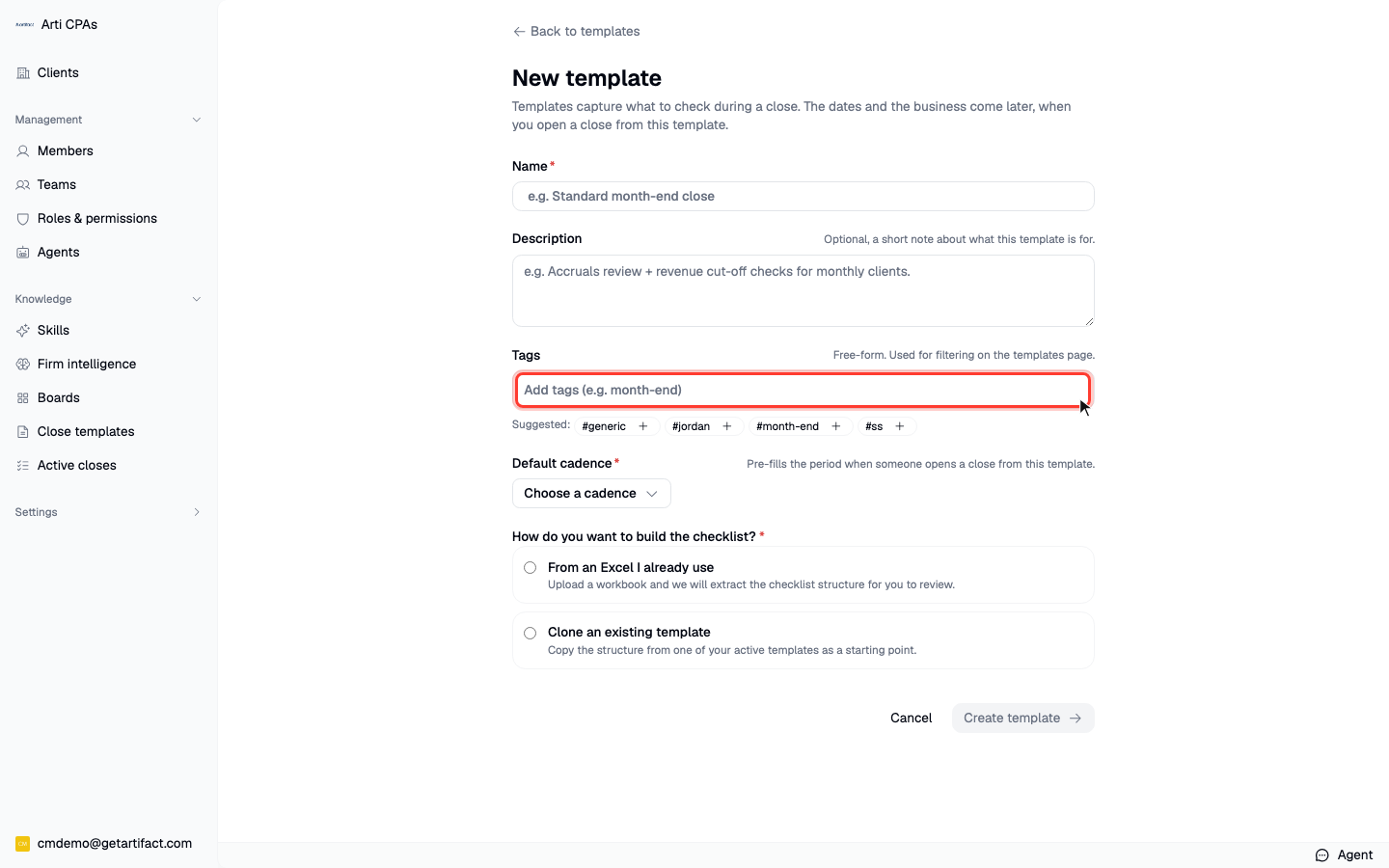
4. Add Tags (optional)
Type a tag and press Enter, or click a suggestion to reuse one. Tags only filter the templates list later.
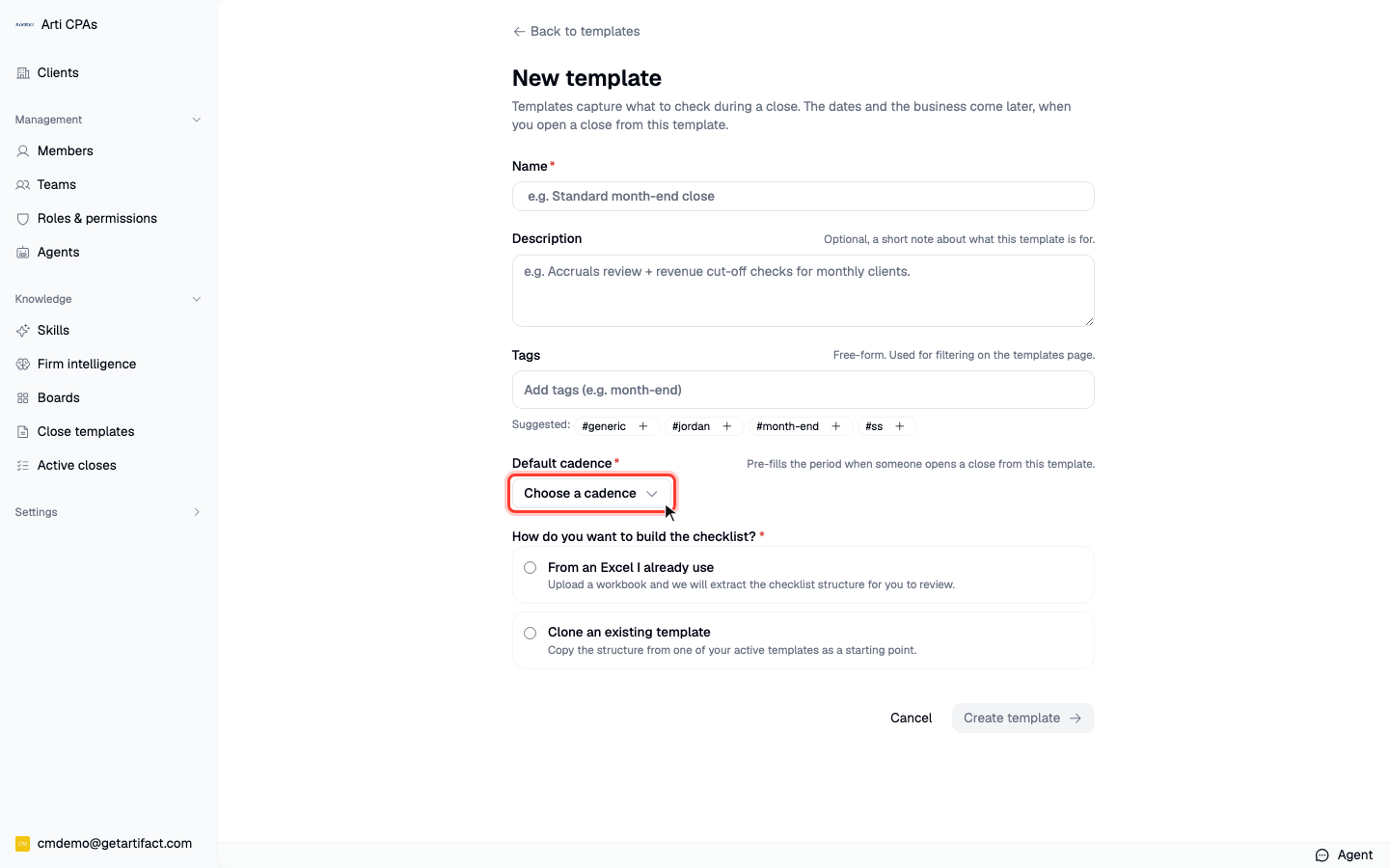
5. Choose the Default cadence
Pick Monthly for a month-end template (also available: Quarterly, Annually, Ad-hoc). The cadence pre-fills the close period when someone later starts a close from this template.
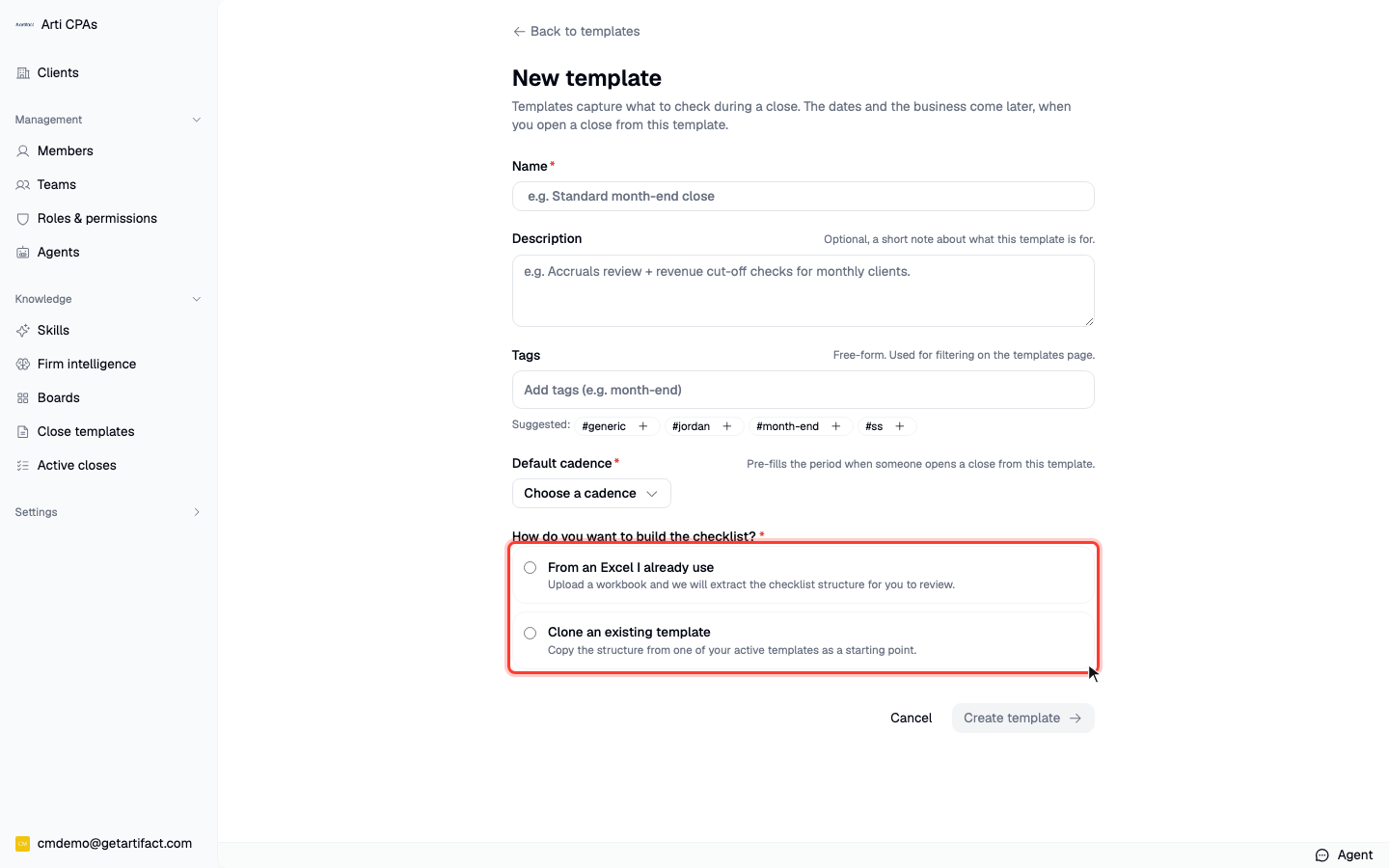
6. Choose how to build the checklist
Select From an Excel I already use to upload your existing checklist workbook, or Clone an existing template to start from an active one.
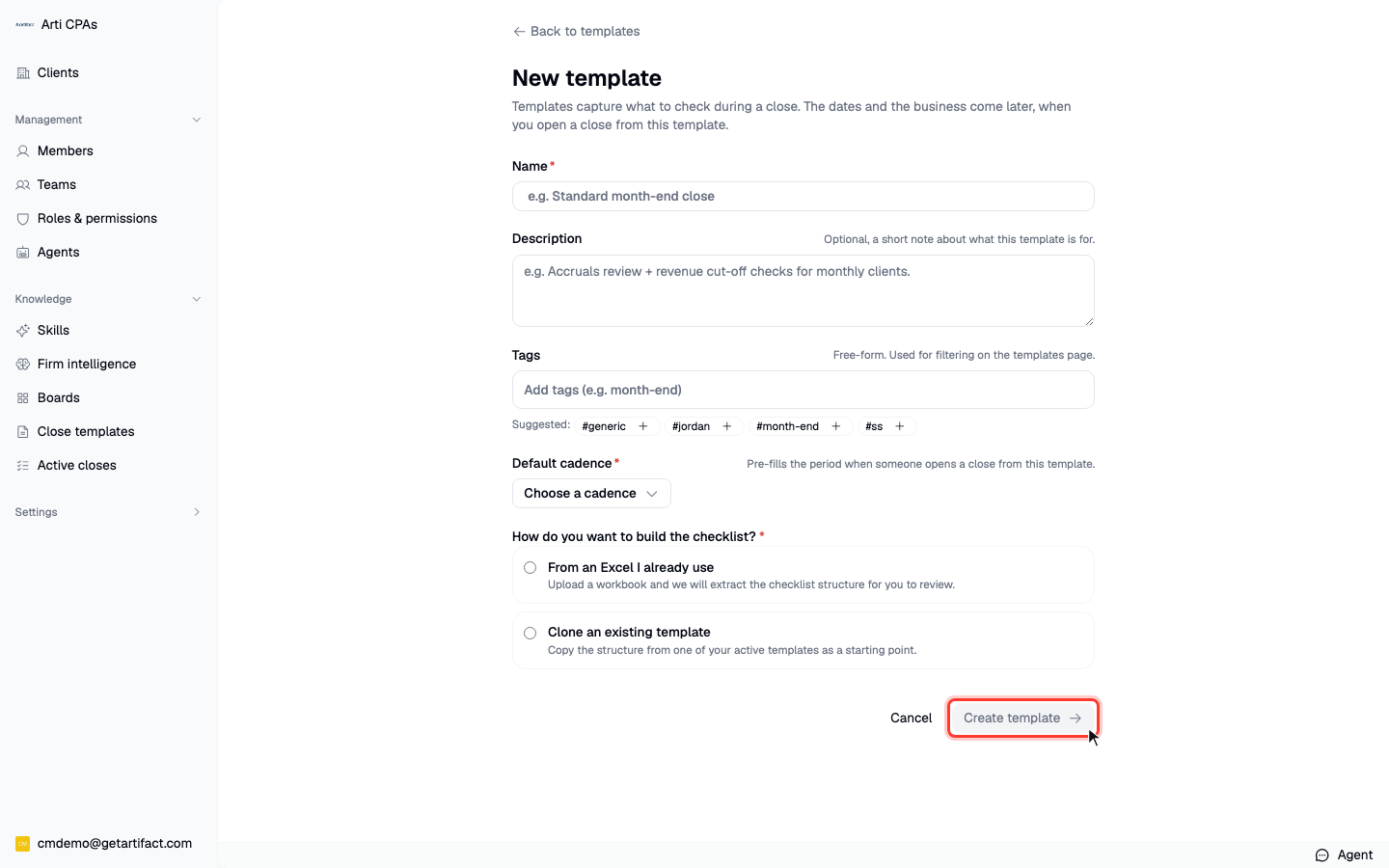
7. Click Create template
This creates the draft and forwards you into setup (the upload page, for the Excel build source). The button enables once Name, cadence, and a build source are set. Drop your checklist .xlsx on the upload page and Artifact extracts the structure.
8. Review & edit the structure
Check the extracted sections and items; set each item's preparer (AI or Manual) and any dependencies, then Continue to workpapers. Full procedure: configure the template structure.
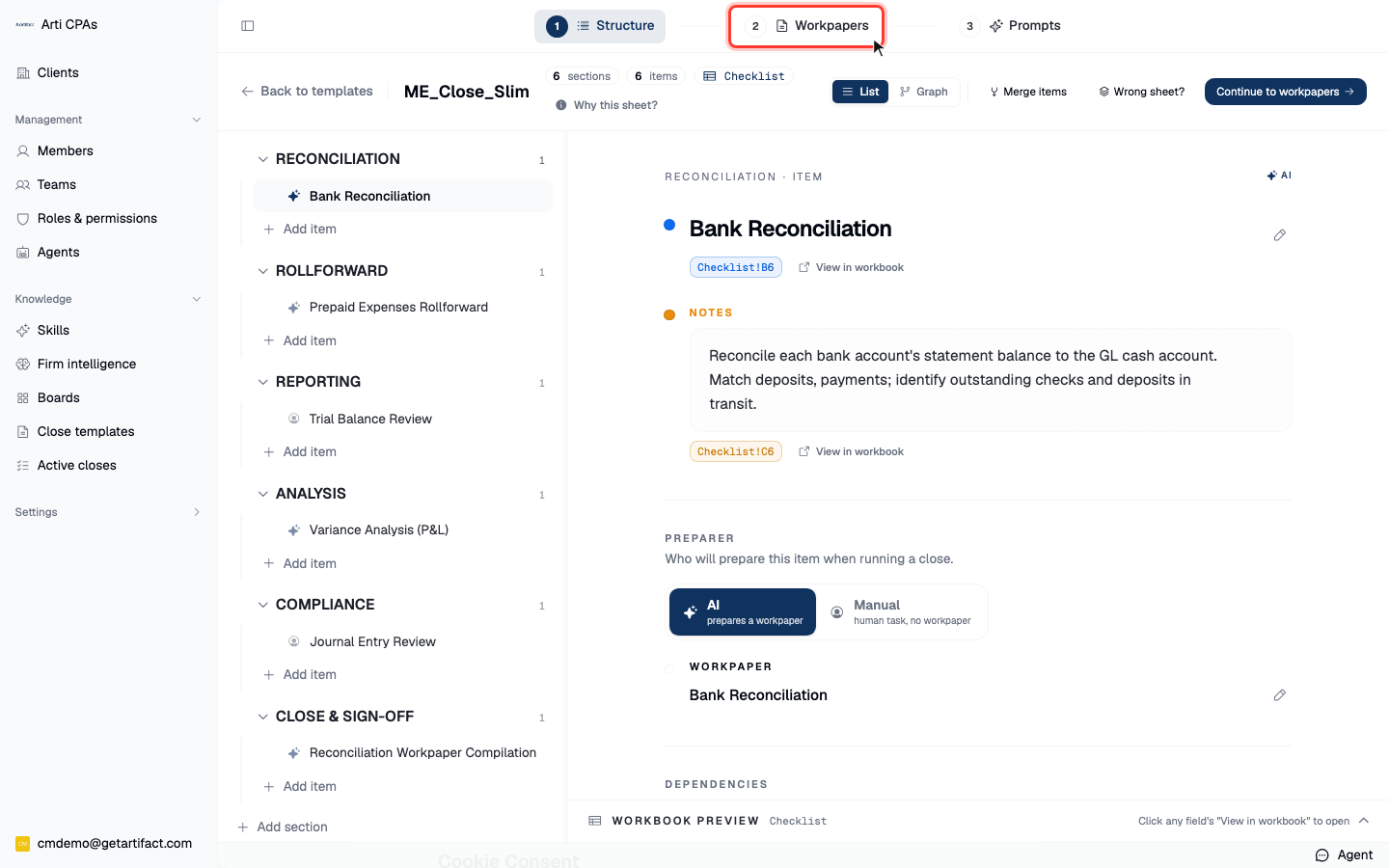
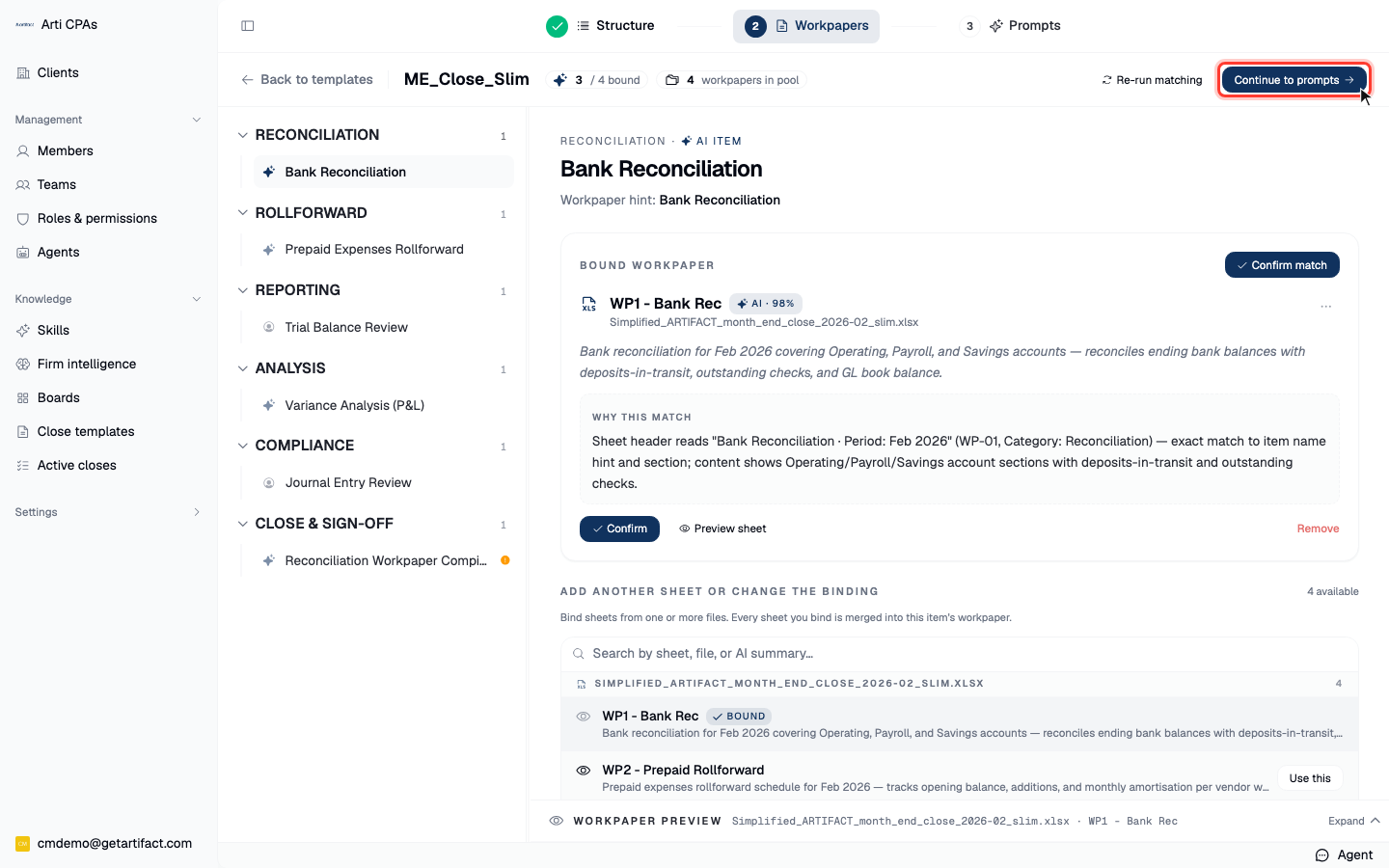
9. Confirm the workpaper matches
Artifact pairs each AI item to its supporting workbook sheet; confirm or fix each binding, then Continue to prompts. Full procedure: add working papers and map them to checklist items.
10. Review the prompts, then activate
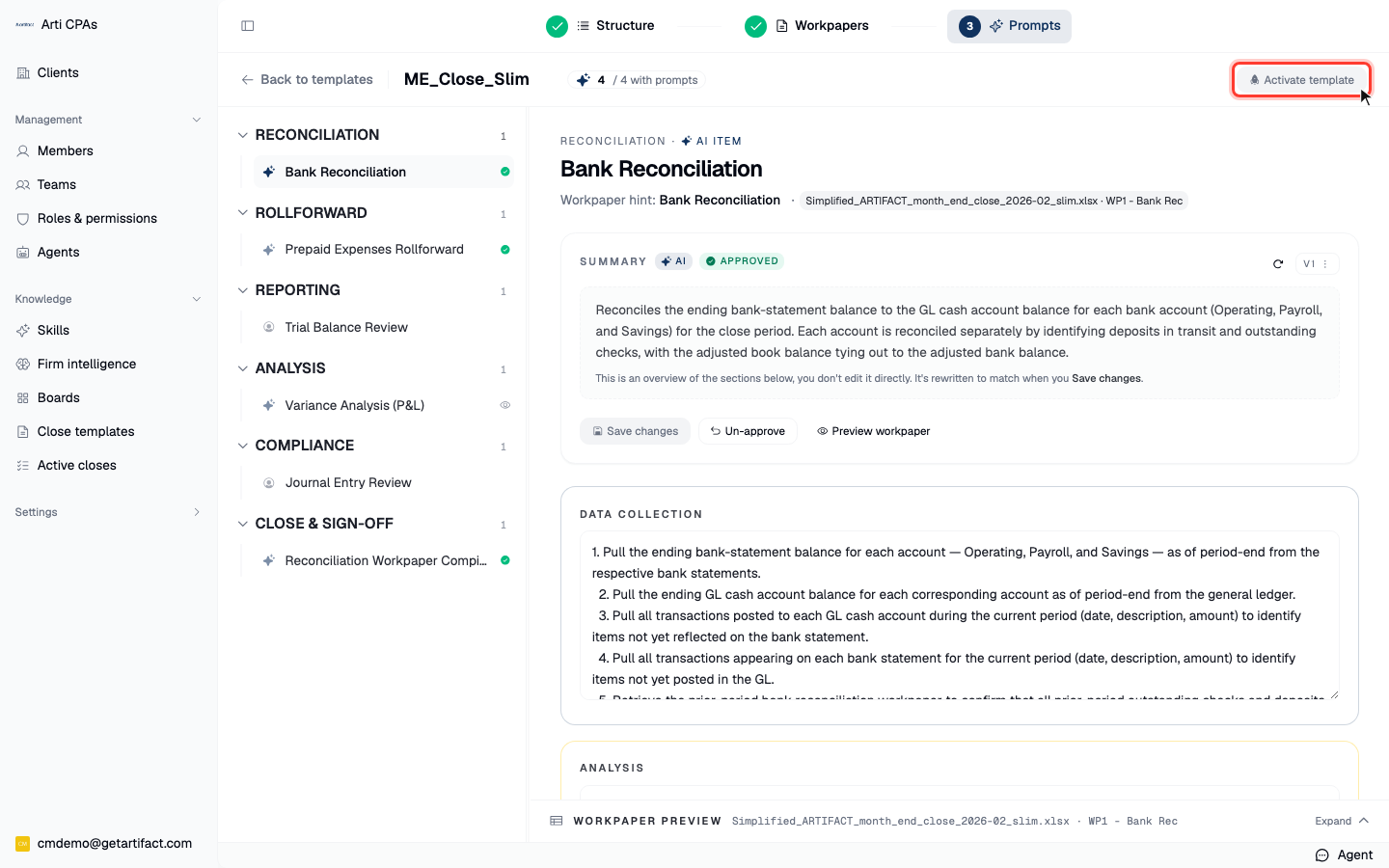
Review and edit the auto-generated prompt for each AI item, Mark as reviewed, then Activate template. Once active, it appears on your templates list and Start a close becomes available. Full procedure: review, edit & approve prompts.
Next steps
Good to know
This is setup, not a live close. Creating a template produces a draft; no client, period, or ledger is attached until you start a close from it.
Have your checklist workbook ready. The common path uploads an existing
.xlsx(max 25 MB) and extracts a first-pass structure you then review.You can't submit the create form until Name, Default cadence, and a build source are set.
Each stage of the wizard has its own detailed guide (Steps 1–4 above); this walkthrough is the map that links them.