Browse and Manage Close Templates
Last updated: August 11, 2026
Browse & manage close templates
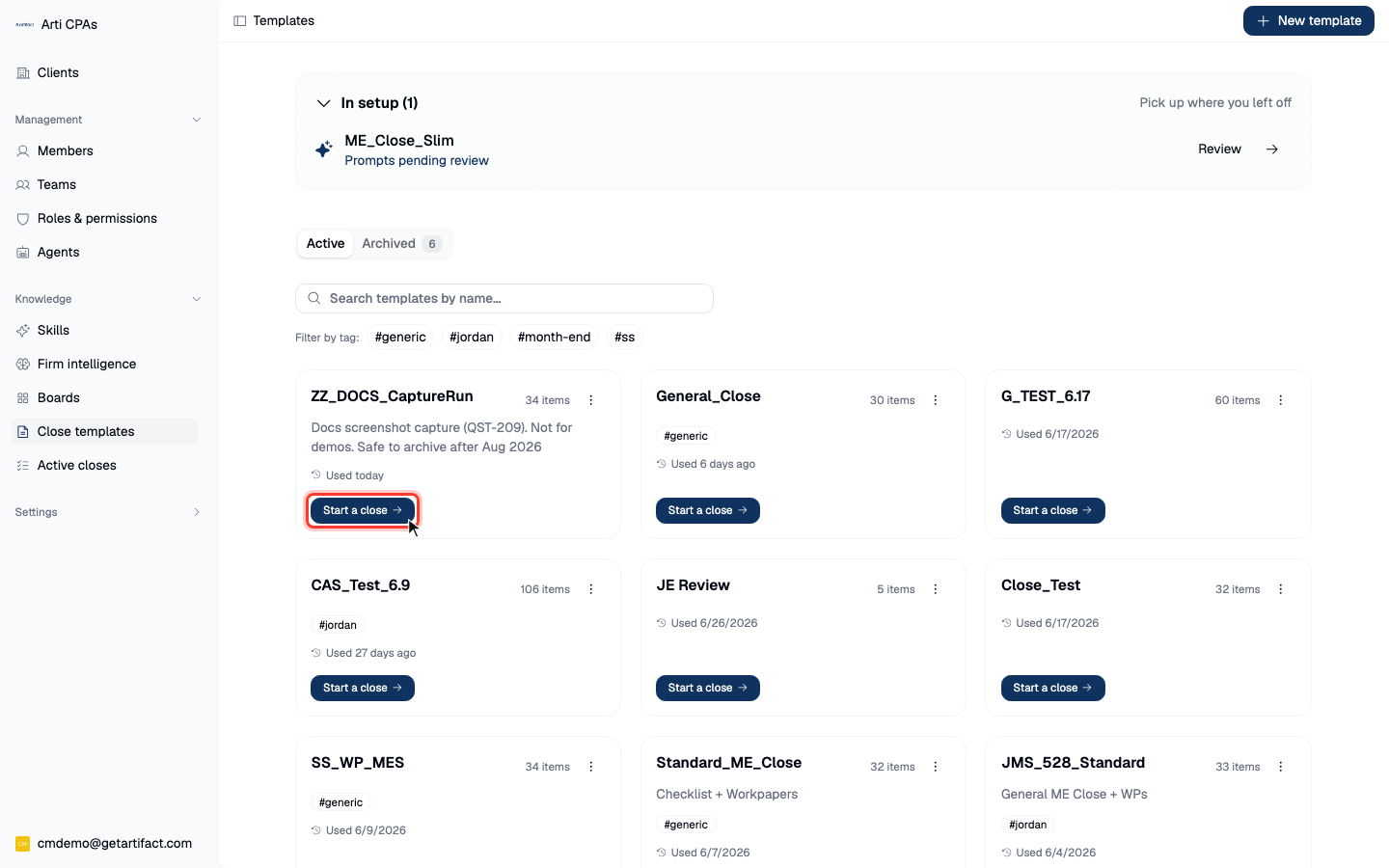
Operate the templates shelf — the firm-level home for close templates. This is the front door you pass through before either building a template (establish a month-end close template (full walkthrough)) or running one (start a month-end close): find a template, open it, rename/archive/unarchive it, or resume a half-built draft. Re-verify the labels on your own tenant.
1. Reach the shelf
Open Close management from the sidebar. The landing route is a smart router: 0 live closes for the selected business → it renders the templates list; exactly 1 → it jumps straight into that close; 2+ → it opens the active-closes list. So when a close is already running, reach templates via the sidebar's Close templates entry rather than the landing redirect.
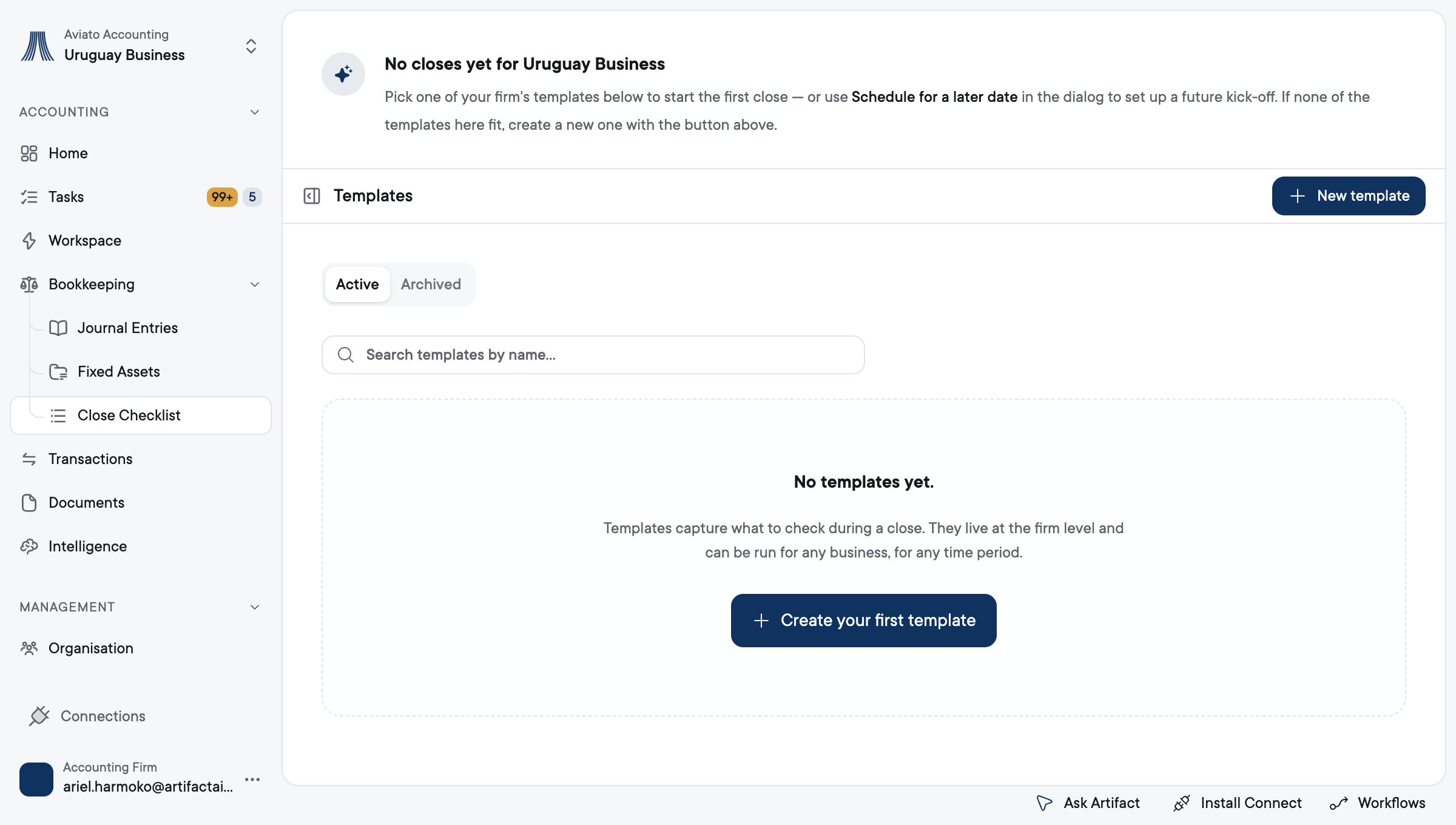
NB: Your sidebar may look different. The templates shelf can be found in Close Templates.
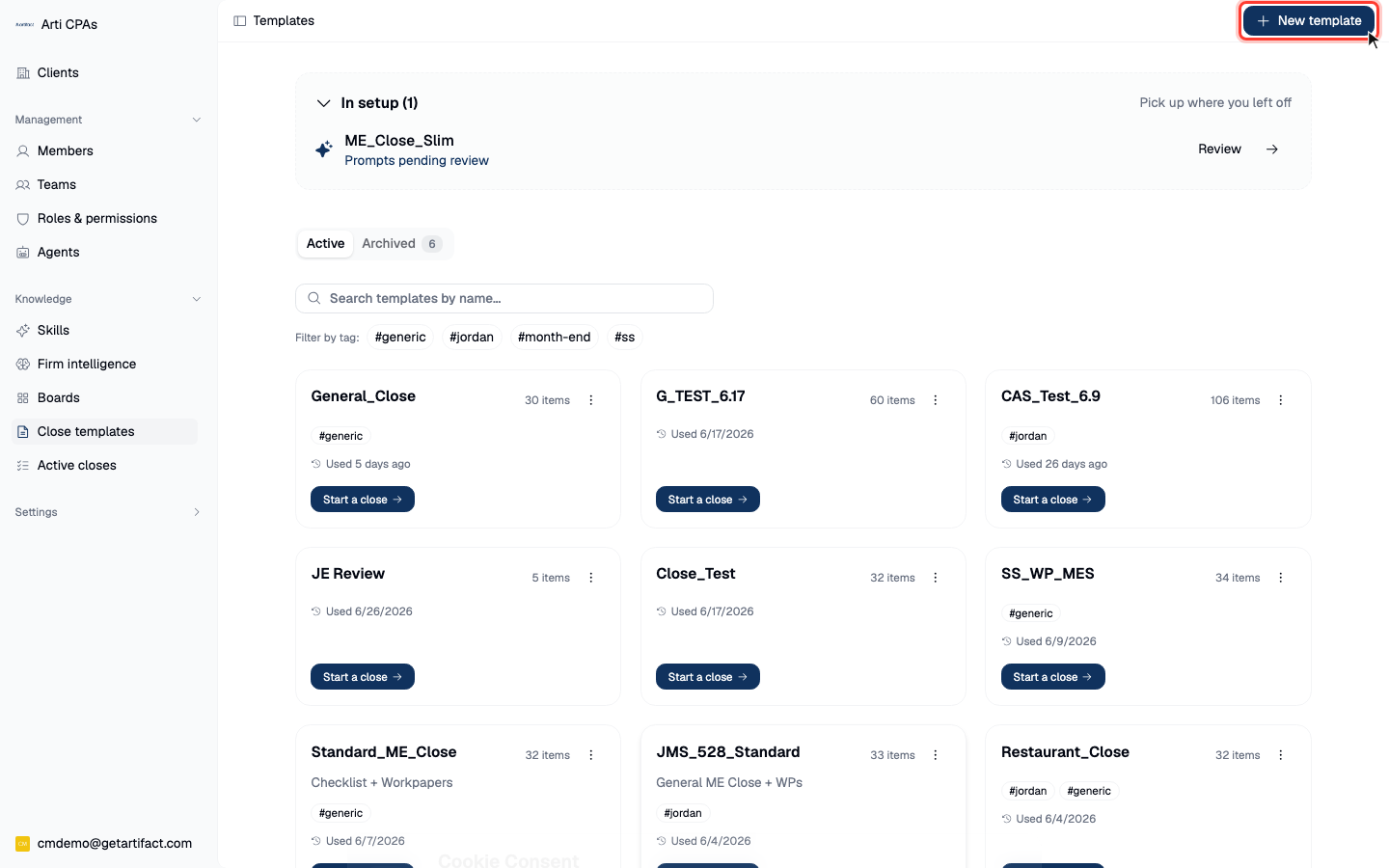
2. Switch Active / Archived
The Active / Archived tabs flip the visible list; the Archived list is fetched lazily. Archive retires a template off the run list without deleting it; Unarchive restores it.
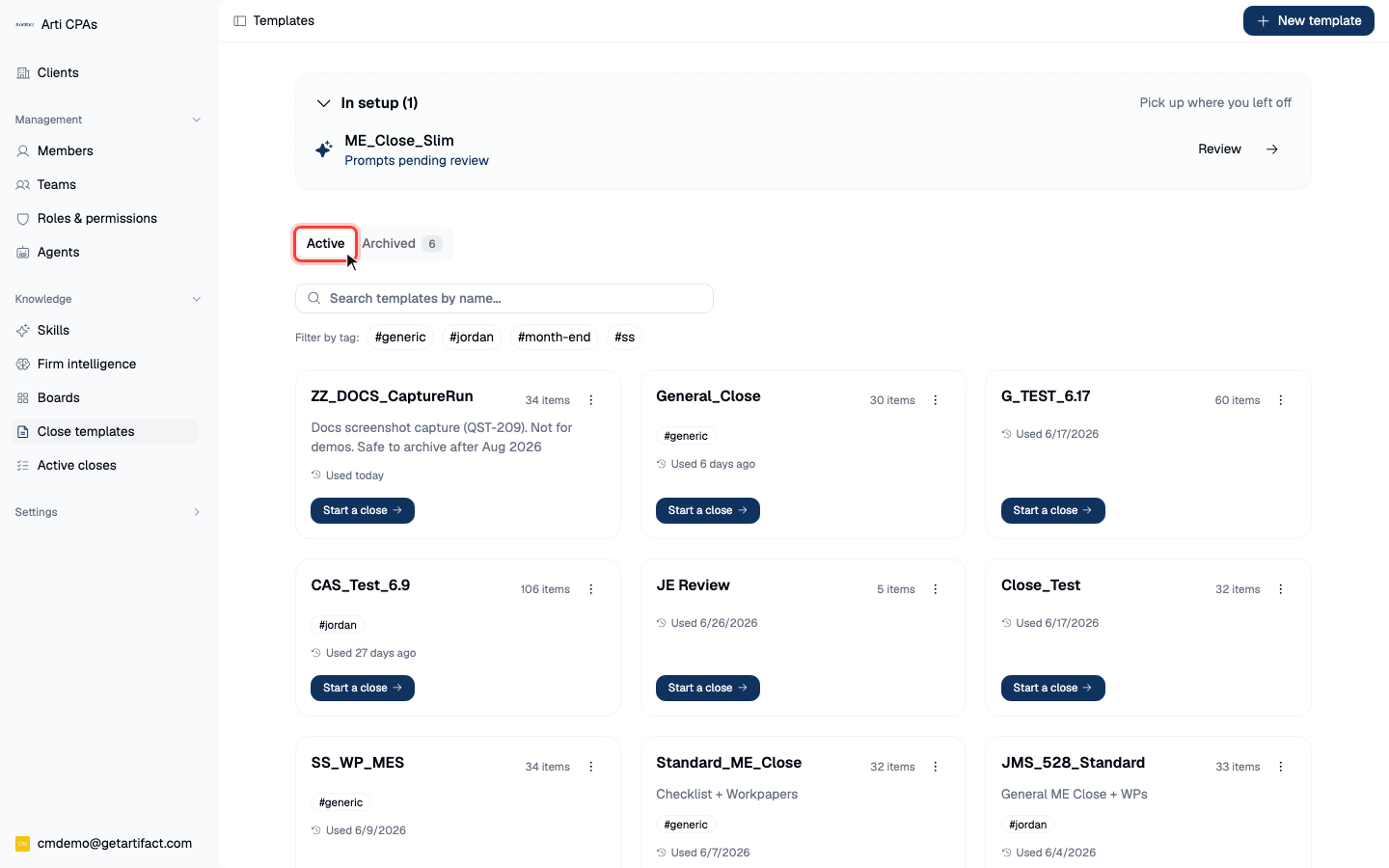
3. Find a template
Use Search templates by name and the Tag filter chips to narrow the active list — worth it once a firm keeps one template per entity type or cadence.
4. Open a template
Clicking a template card opens it on its prompts-review page — the editable source of truth for that template's checklist and per-item agent prompts.
5. Per-card actions — mostly write-gated
Click the title to rename inline. Open the ⋮ actions menu for Archive / Unarchive. A draft still in setup shows a Resume CTA (which routes back to the correct wizard stage) and a bin → inline confirm to Delete the draft. Archive / Unarchive / Delete are WRITE actions and human-gated — described here, never auto-fired; a delete is permanent.
6. Exit A — build a new template
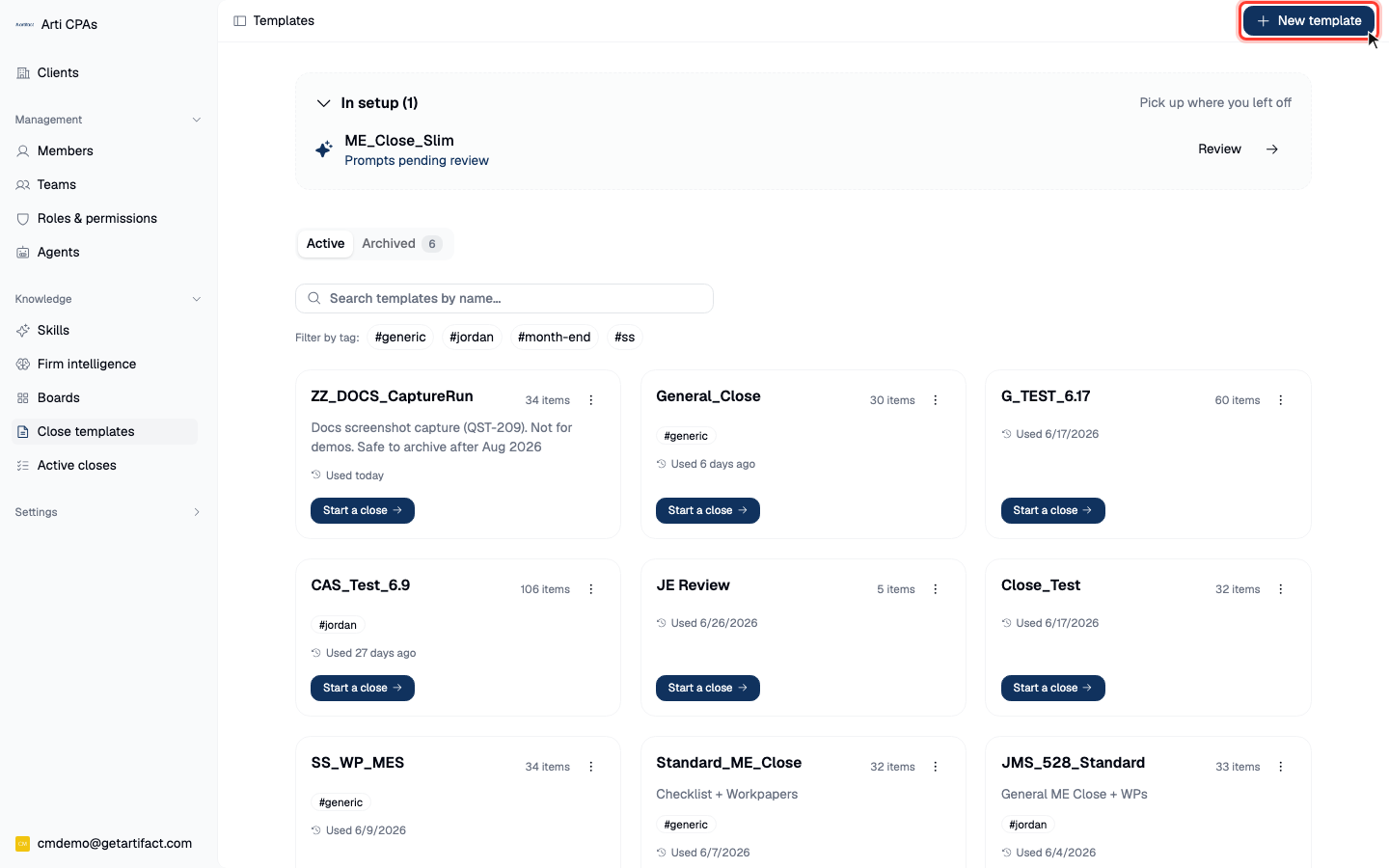
New template is pure navigation to the create form; it starts the setup wizard. The full build procedure (name → cadence → build source → Create → structure → working papers → prompts → activate) lives in establish a month-end close template (full walkthrough).
7. Exit B — run a template
Start a close opens the Start-close dialog for an active template (disabled for drafts and archived templates). Picking a client + period stands up that period's close — full procedure in start a month-end close.
Next steps
Good to know
- Role: an accountant seat; templates are a firm-level object (build once, run for many).
- Flag: the shelf lives in the Close management area, which is behind a feature flag. If you don't see Close templates in the sidebar, it isn't enabled for you yet.
- Nothing else is required to browse — the read-only list, tabs, search, and card-open are all pure navigation. Only the ⋮ actions (archive / unarchive / delete) and the two exits write.