Schedule the Next Close
Last updated: July 29, 2026
Make the close recur — and do it in the one place it actually lives. A recurring close is not configured in a settings page; it is set at the moment you complete a close. When you finish this period, the completion dialog asks what happens next: start the next one now, schedule it for a date, or simply stop. This how-to is that choice — most people go looking for it in settings.
1. Open the Complete-close dialog
It opens from the close header's Complete close — available only once every item is approved — or from the summary ribbon's Complete this close →. Building the export pack and the completion mechanics are in Complete and Export a Close.

2. Pick what happens next period — the three modes
Complete & start next now (the default) — completes this close and immediately stands up the next period.
Complete & schedule — sets a Kick off at date and time; the next close auto-starts then, recurring each period without a manual re-setup.
Just complete this close — ends the cycle with no successor.
The primary button relabels to match the mode you pick.
3. Set the next period's dates and its team
For start or schedule, the dialog exposes the next period's date fields and an assignee picker and validates them before anything fires — an invalid kick-off time blocks submit. The next close is scheduled and staffed in the same step.
4. Know what carries over
Starting or scheduling the next close carries this close over as its source: the next period's unbound working papers re-resolve from this close's output — your edited workpapers — not from the original template draft. So the next close starts from where you actually left off, not from a blank template.
Scheduling the first close — and cancelling one
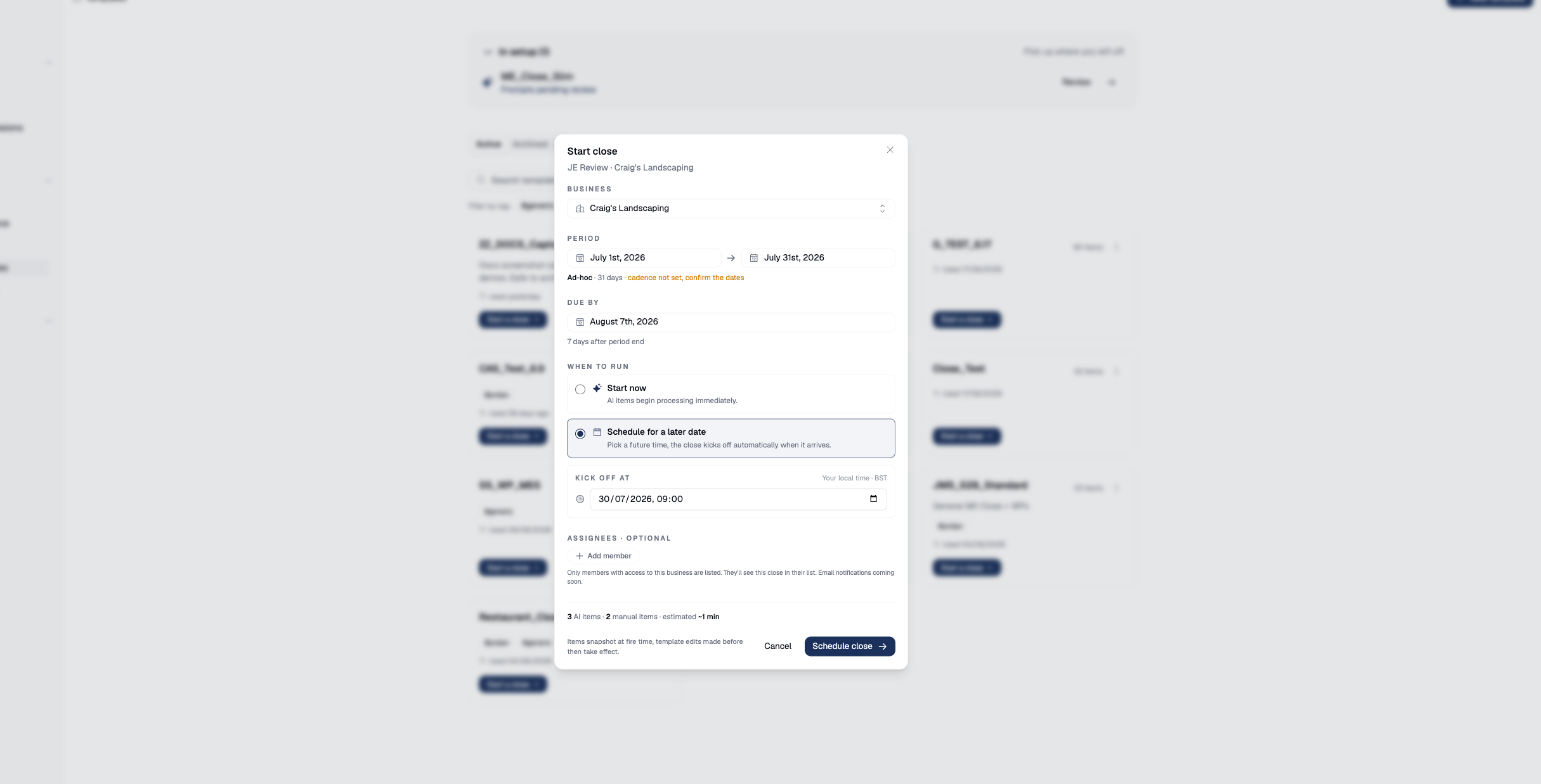
The Start-close dialog offers the same choice for a close's first run: Start now, or Schedule for a later date with a Kick off at time.
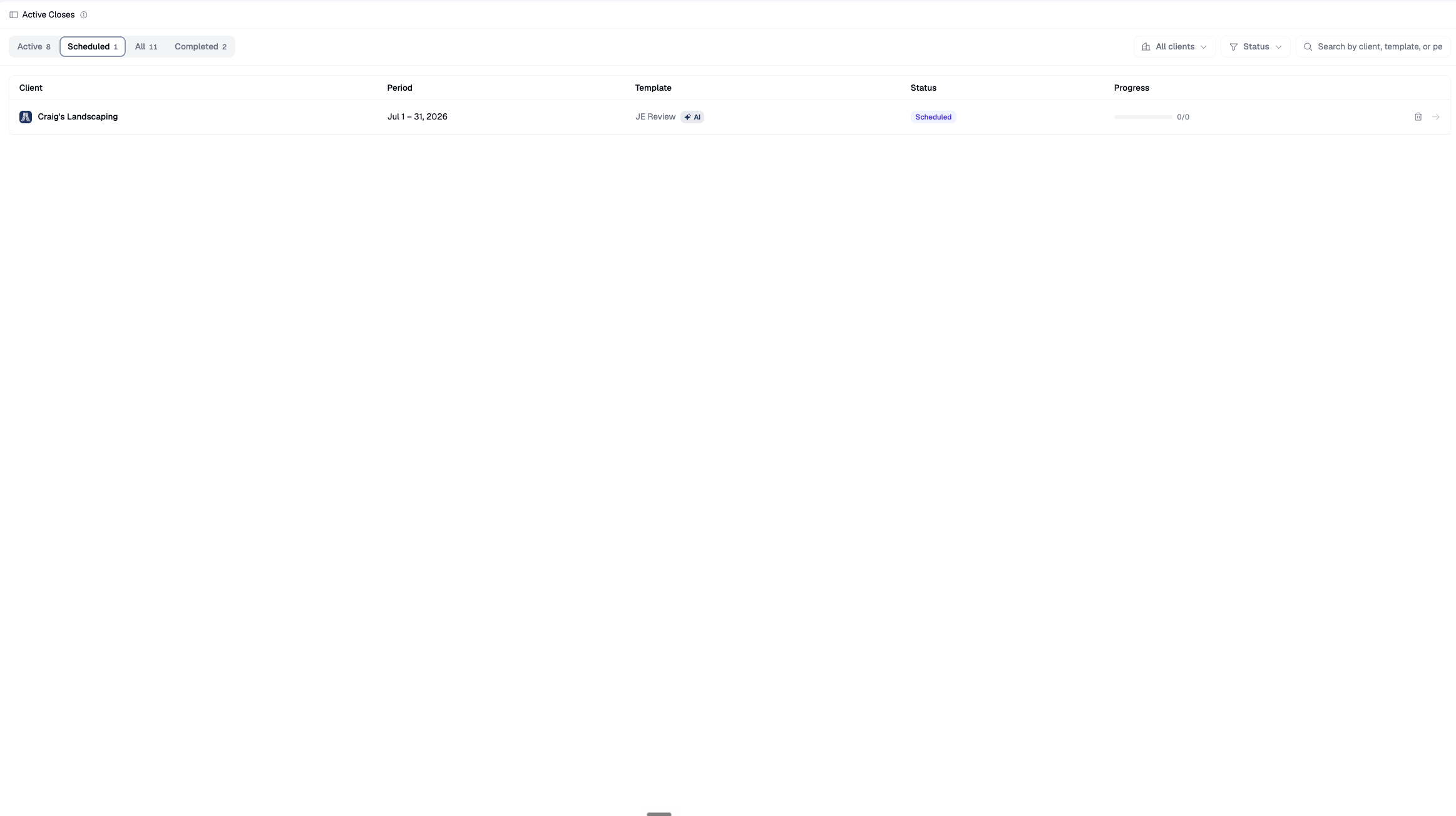
A scheduled close waits under Active closes → Scheduled until its kick-off time.
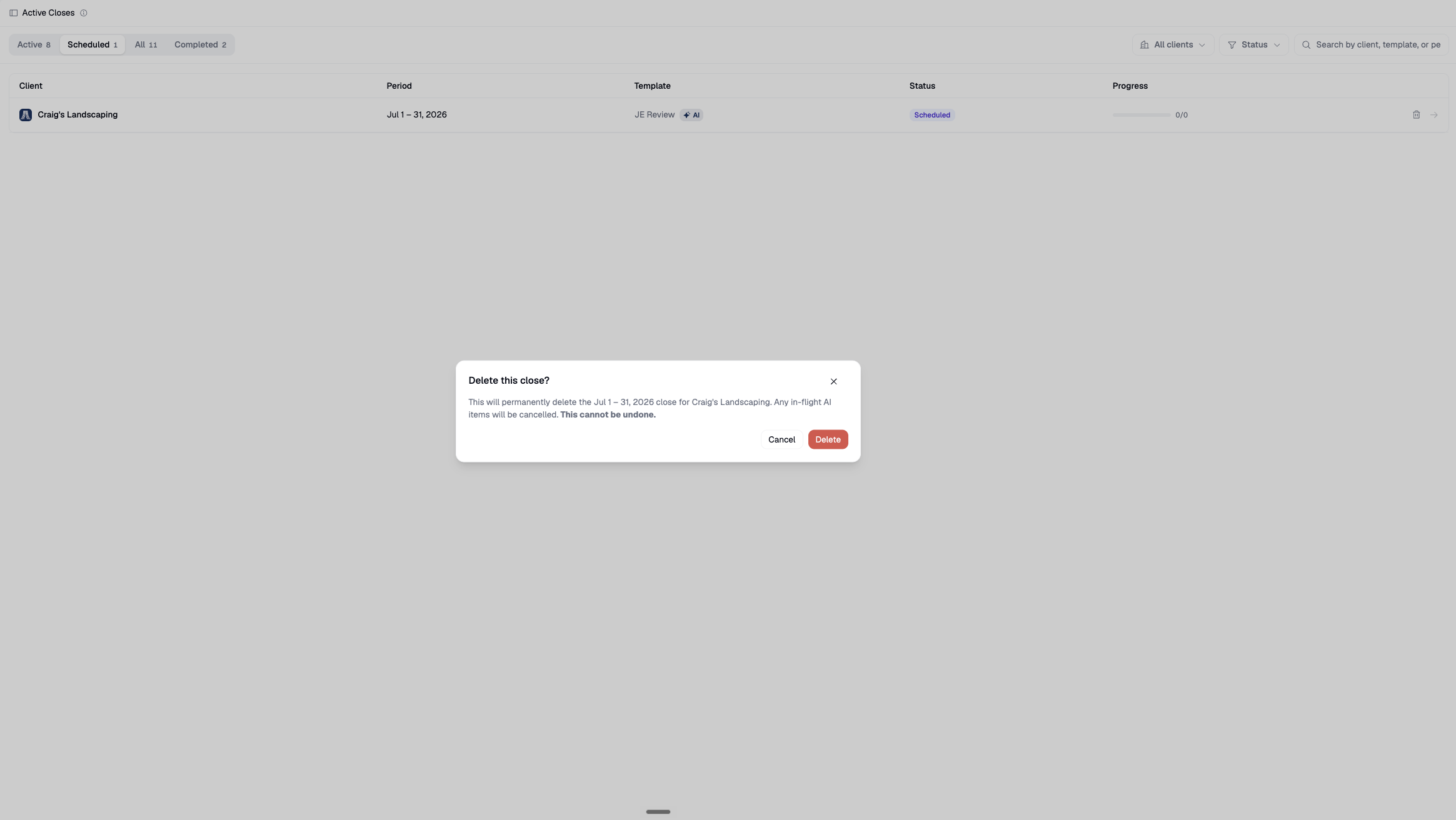
To cancel one, use its delete action — deleting a close is permanent and cancels any in-flight items.
Next steps
Good to know
There is no "recurring closes" settings screen. Scheduling the next close is a mode inside the Complete-close dialog, not a separate configuration page. If you are hunting for where to make a close repeat every month, this is it.