Read a Working Paper and Its Audit Trail
Last updated: July 29, 2026
Answer the reviewer's question — "where did this number come from?" — for a figure Arti produced, and correct it if the answer is wrong. A workpaper is only a workpaper if it ties out; in Artifact the tie-out is recorded per material figure and readable from the cell itself. This is the workpaper detail under Run a Close and Approve Journals.
1. Start in the Workpaper tab — the read-only preview
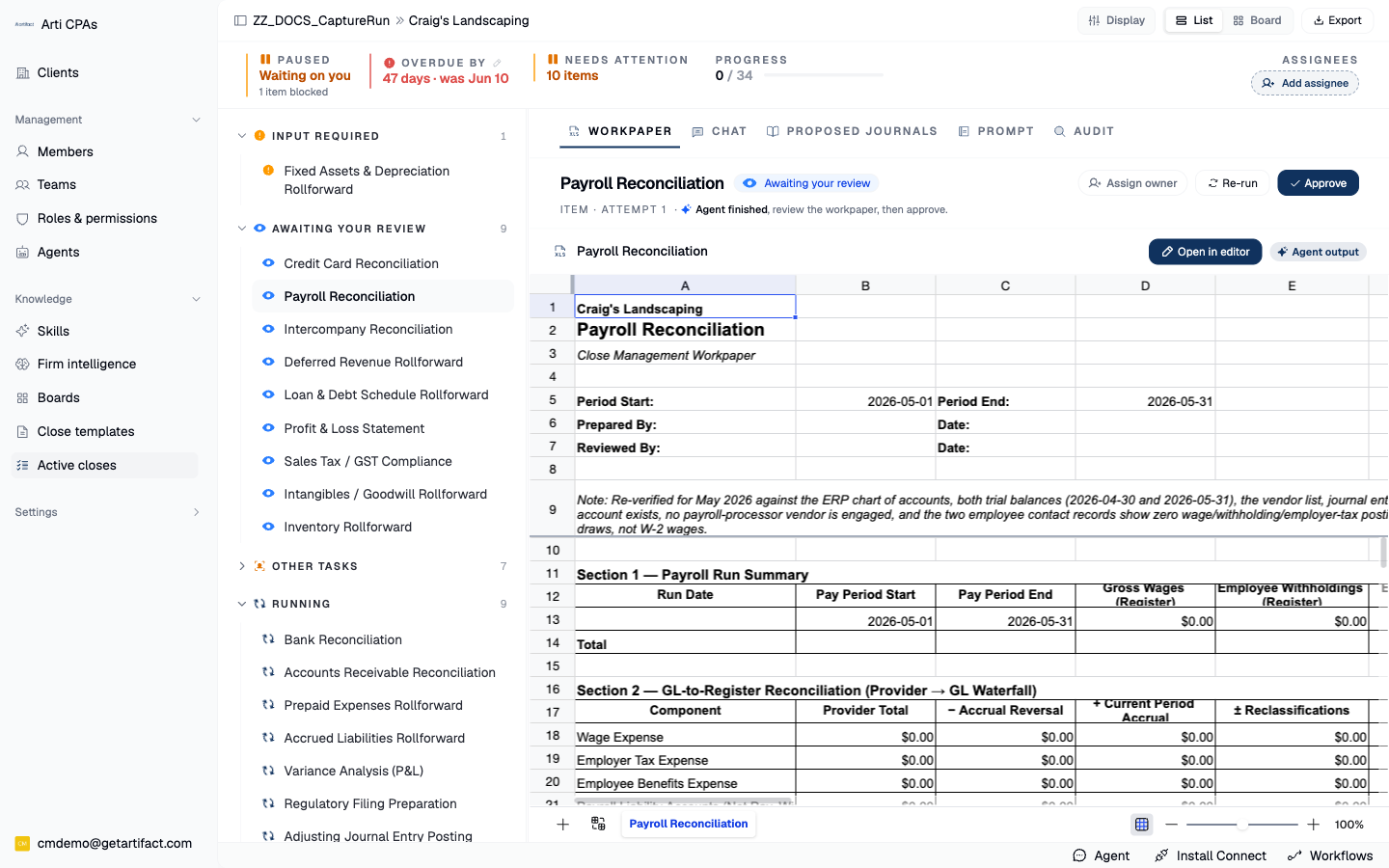
The workpaper is a spreadsheet rendered in an embedded workbook view. The preview is locked on purpose: edit, paste and command events are cancelled while scroll, zoom, selection and sheet-switching pass through, so you can read and navigate freely without changing anything.
On an AI item the tabs are Workpaper · Chat · Proposed journals · Prompt · Audit — the Evidence tab belongs to manual items, where it holds the files you attach to complete the step.
2. Click a cell to see where the number came from
Selecting a cell matches it against the run's audit entries and surfaces that figure's provenance inline (X dismisses it). Each material figure carries one entry answering the four questions a workpaper must answer — sources (where it came from), calculation (the formula and a plain-English statement of it), rationale (why), plus tie-out status, reviewer flags and materiality.
3. Follow the agent's trail
A source that carries a tool-use id offers View agent trail, opening the agent audit tree for that step; rows expand to the stripped metadata behind them. Highlight cells jumps the workbook selection to the range a finding covers, so a claim and the cells it refers to are never separated.
4. Open in editor when reading is not enough
Open in editor: it resolves or creates the close workpaper and opens the full editor, deep-linked to the sheet and cell you were on.
5. Understand the single-writer lease before you type
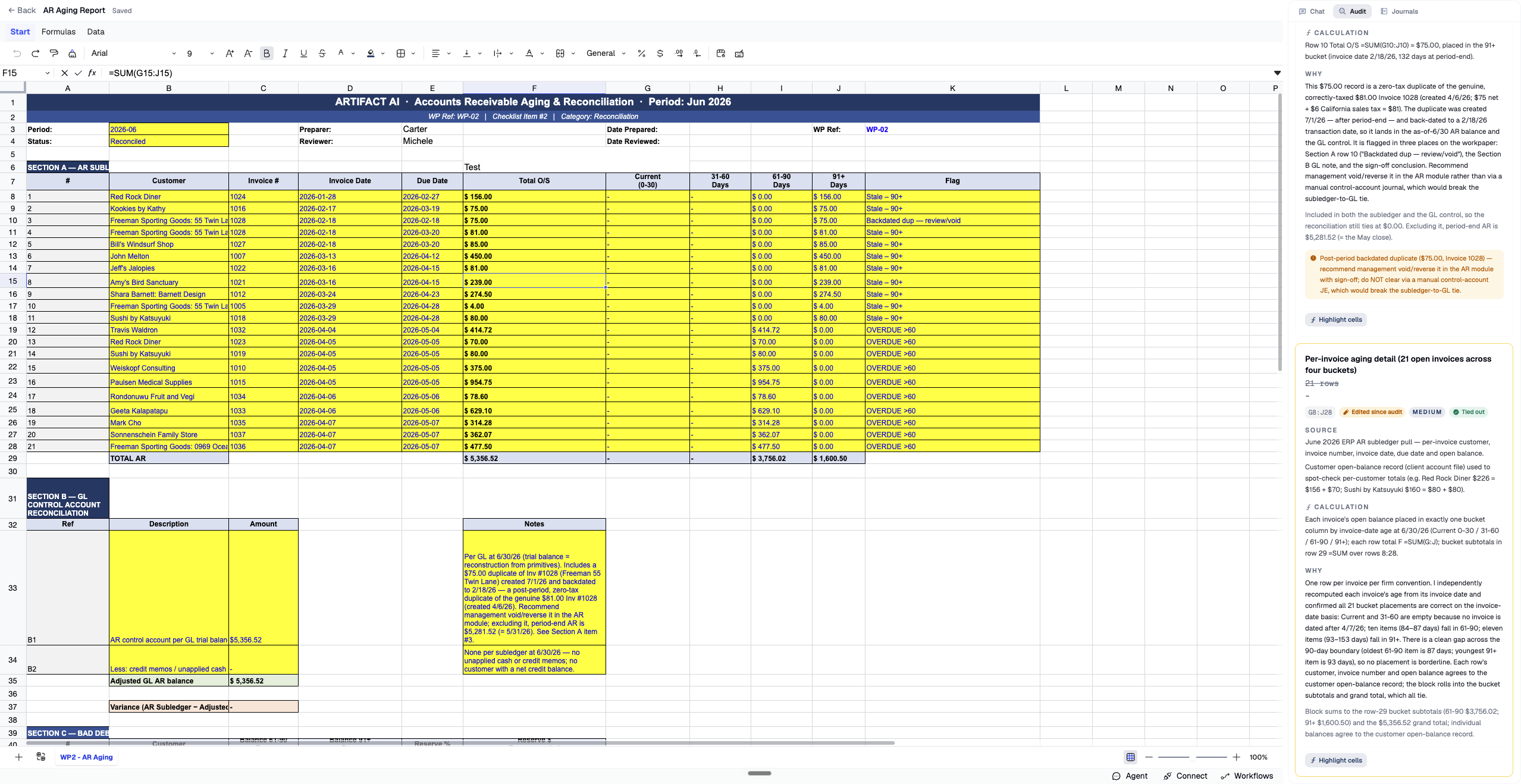
Opening the editor acquires an edit lease for this workbook, held while you are in the editor and released when you leave; an abandoned tab expires on its own. The agent will not edit a workbook a user is actively editing — its dispatch defers instead. If the lease is taken from you, the editor switches to read-only; reopen it to edit again.
6. Edit the cell — and know what the edit means
Cell edits autosave.
If the workbook moved under you, a reload-conflict prompt offers Reload latest version or Keep my changes.
And the part that matters for control: editing a cell an audit entry covers marks it as overridden, and the UI badges it "edited since audit" — an honest statement that the recorded provenance no longer matches the live number.
That cell-diff is also the training signal the post-close learning pass reads; a clean approve with zero corrections is captured as confirmed correct, so the agent reinforces what worked, not only what failed.
7. Read the audit side panel in the editor
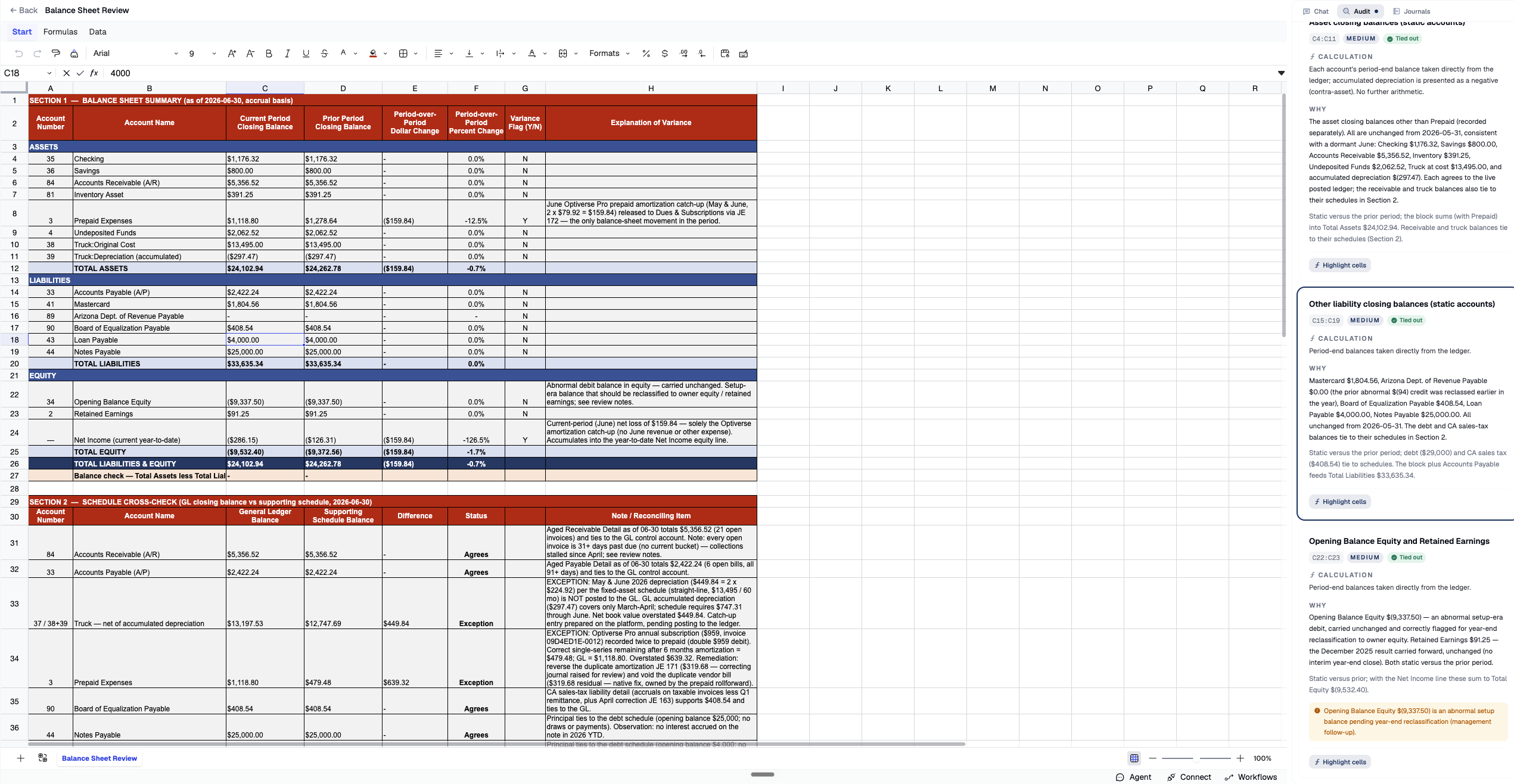
It lists the run's findings as per-figure cards; Highlight cells selects the range a card covers, and a card spotlights when you select a cell it matches. That two-way link — cell → finding, finding → cells — is the tie-out view: figure, source, calculation, conclusion.
Next steps
Good to know
Two surfaces, one workbook. The preview inside the item pane is read-only by construction. The editor is the real, writable workbook. Know which one you are in before you type.