Run a Close and Approve Journals
Last updated: August 11, 2026
Run a close and approve journals
Run a month-end close to completion and approve the proposed journal, one item at a time — the third phase of the end-to-end "follow a transaction" journey. You start from a configured template, work each item to Awaiting review, sign it off item by item, approve (or edit or dismiss) the proposed JE, tie out the workpaper behind it, and complete the close. Nothing leaves the close without this per-item human approval.
1. Open Close Management
Sidebar → Close Management → /close-management: the closes list + templates (a single active close redirects
straight in).
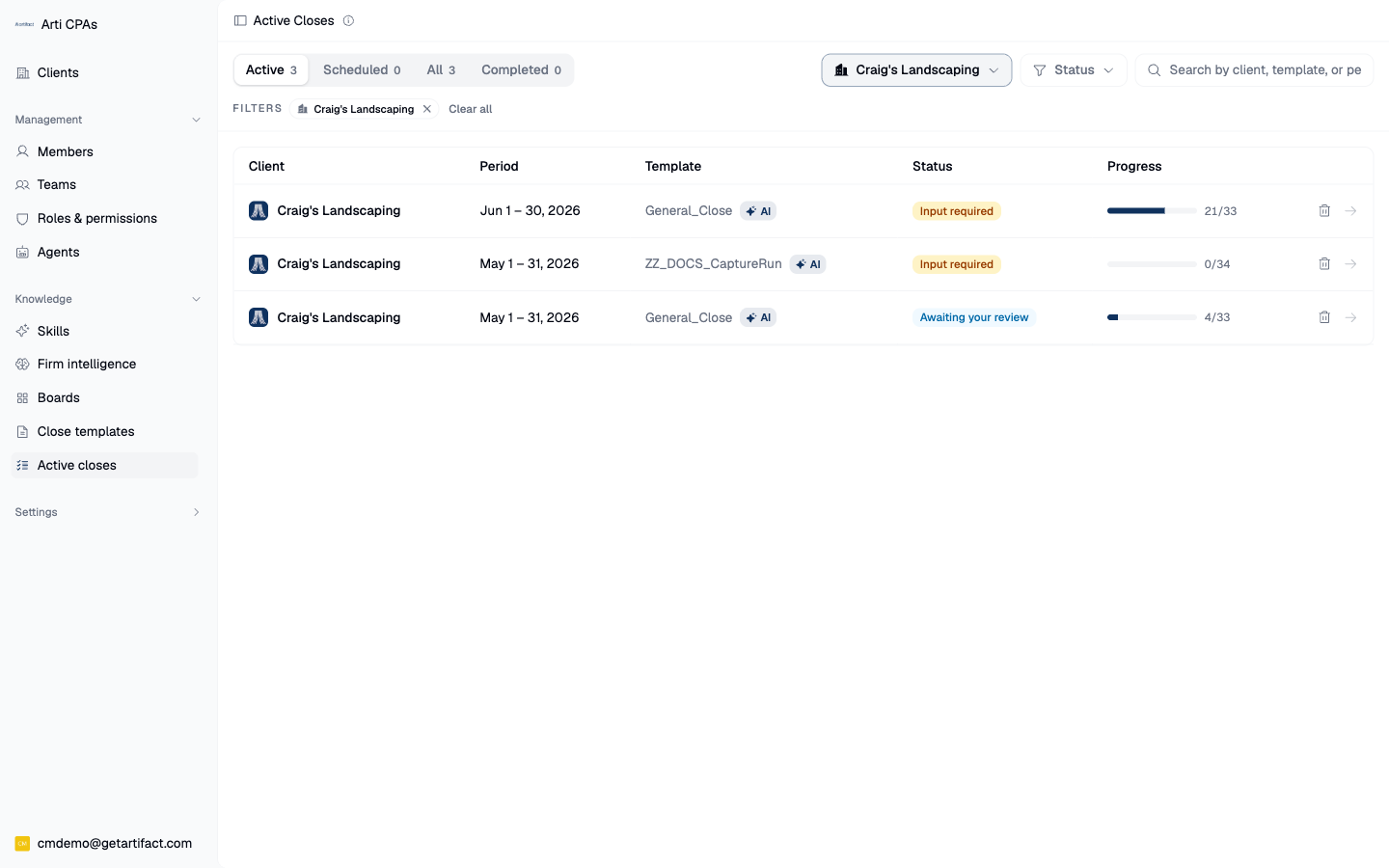
NB: Your sidebar may look different. An active close can be found in Active Closes or Close Checklists.
2. Start the close
Start close → business/template + period + assignees, Start now or Schedule. This creates one close item for each item in the template. Full start procedure: start a month-end close; the template comes from establish a month-end close template (full walkthrough).
3. Work the close detail shell
Header (status + Complete close) · progress ribbon · item rail · board. Items move Queued → In progress → Awaiting review → Approved; an AI run finishing lands the item in Awaiting review, not Completed.

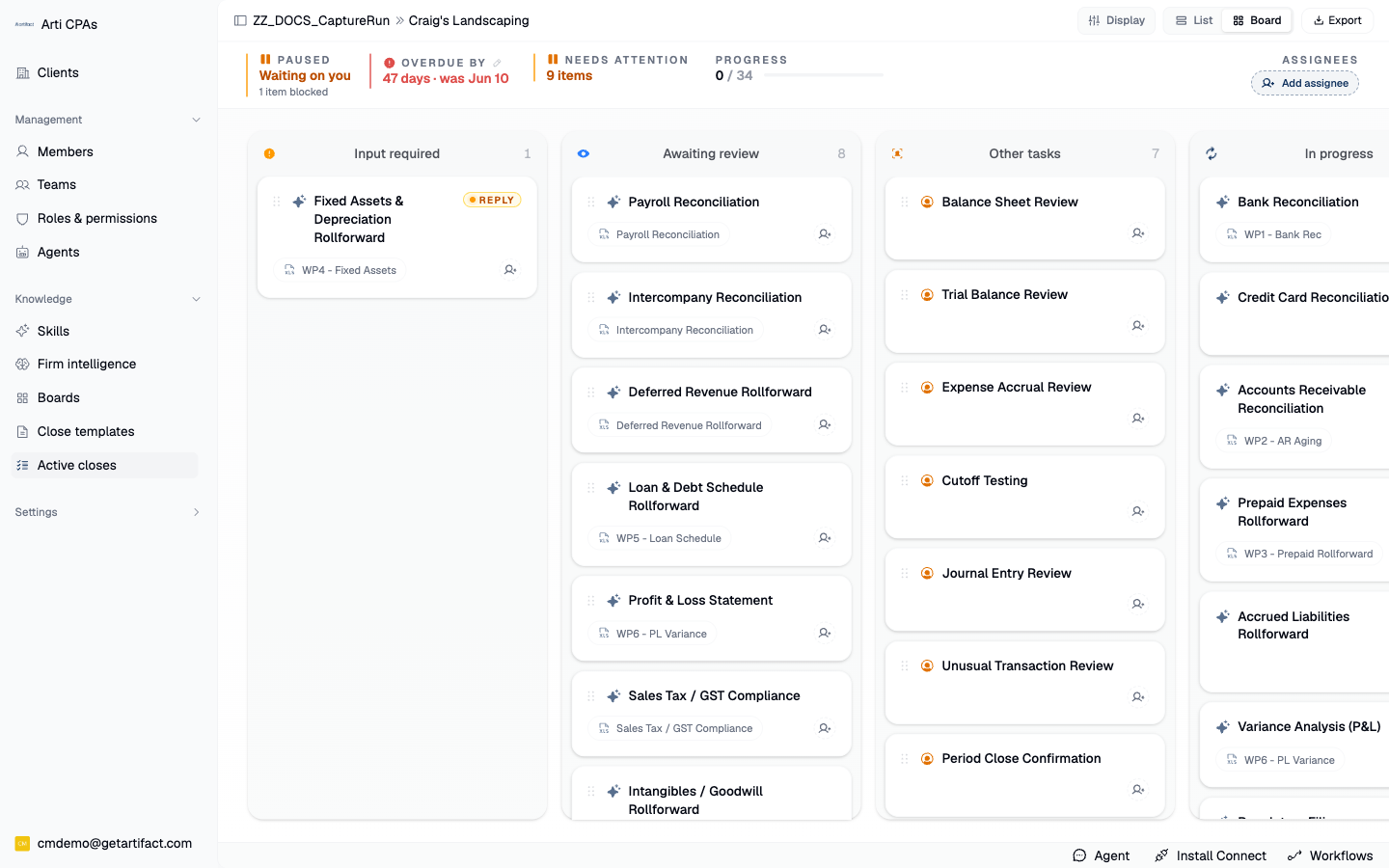
4. Approve per item — the human gate
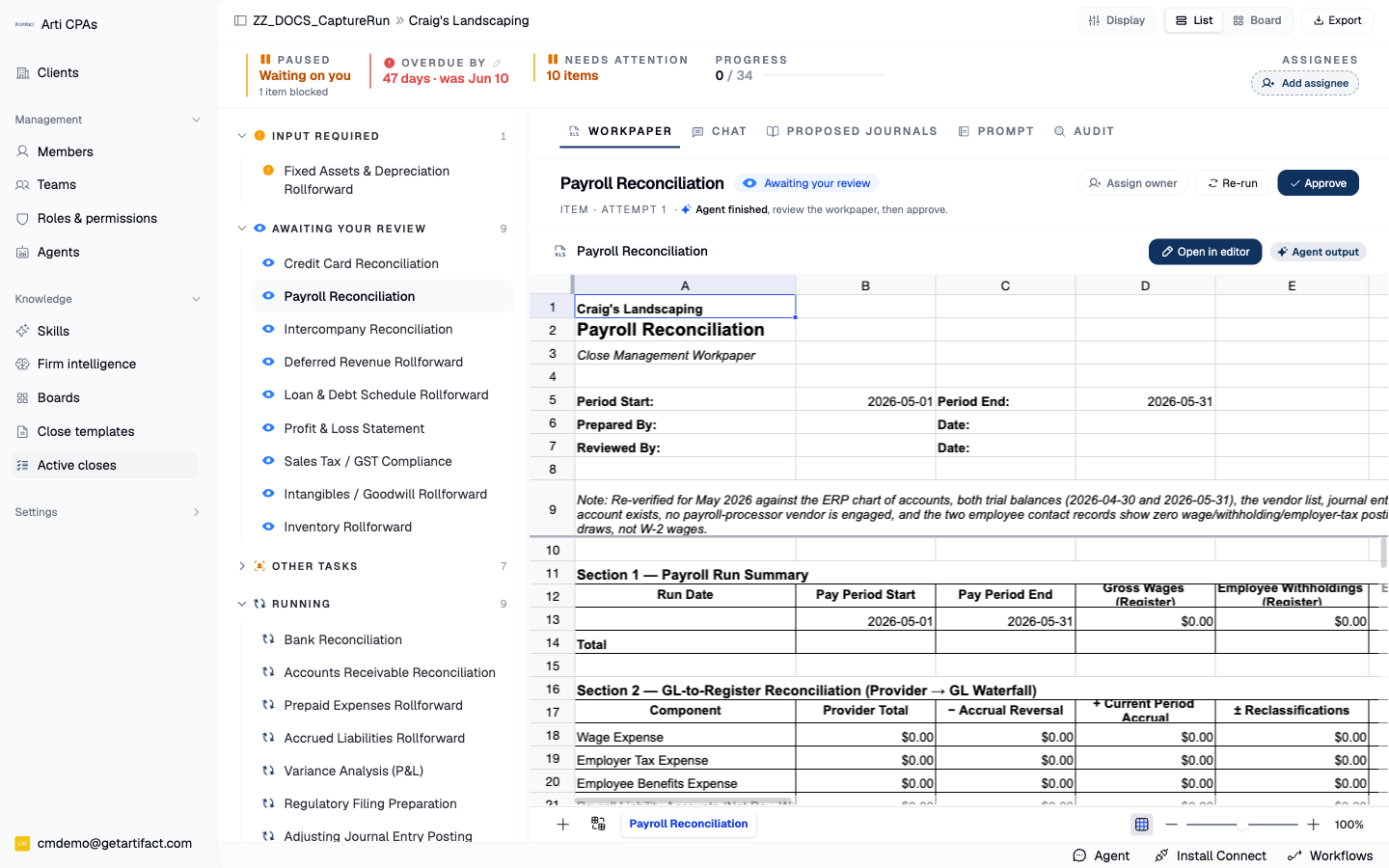
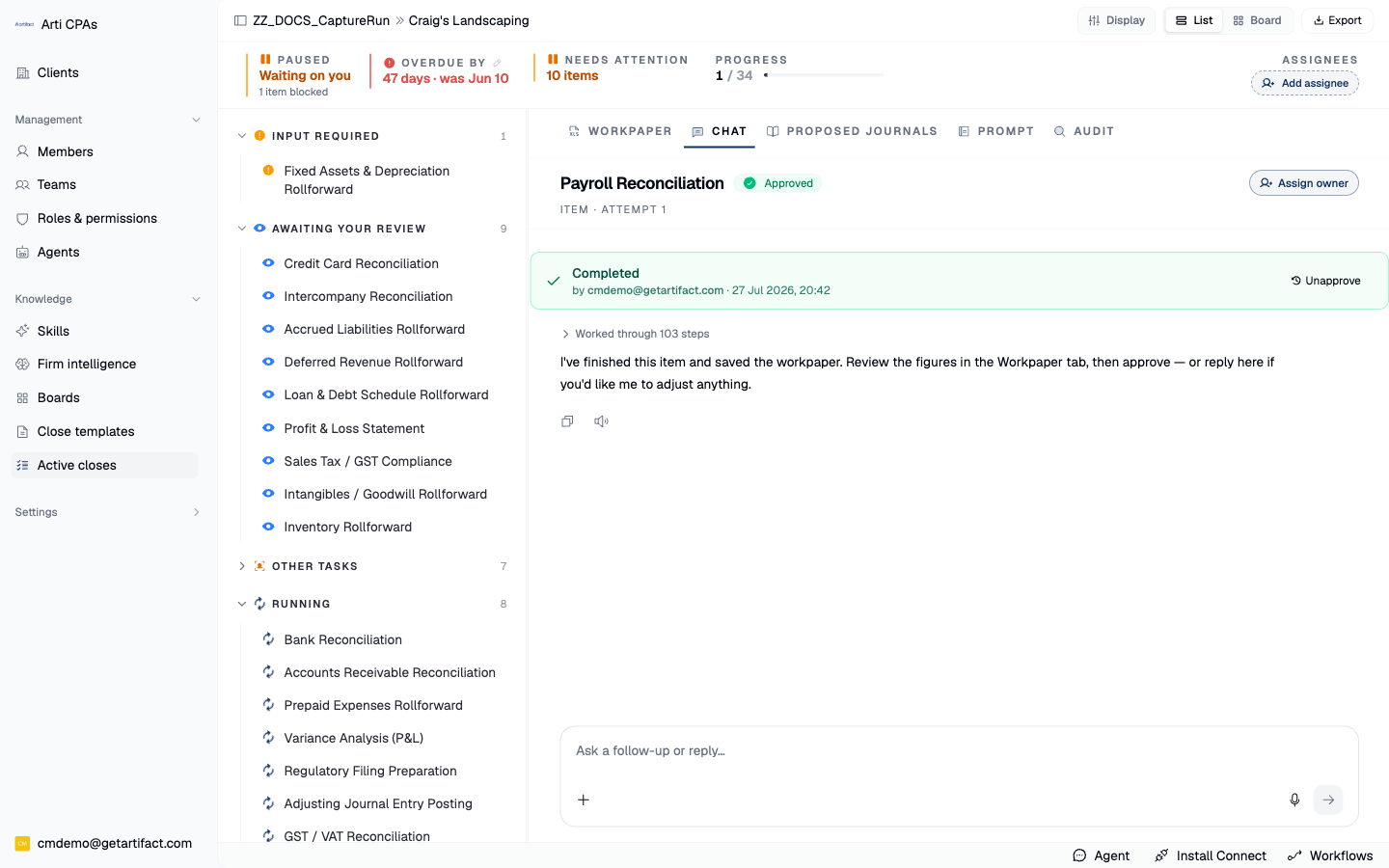
Open an item → its pane exposes Approve / Unapprove / Re-run. Approve is the canonical sign-off: it moves the item from Awaiting review to Completed, stamps who approved it and when, and advances the progress counter; Unapprove reverses it only while the close is still under review. No aggregate approve bypasses item review.
5. Approve the proposed journal — the keystone moment
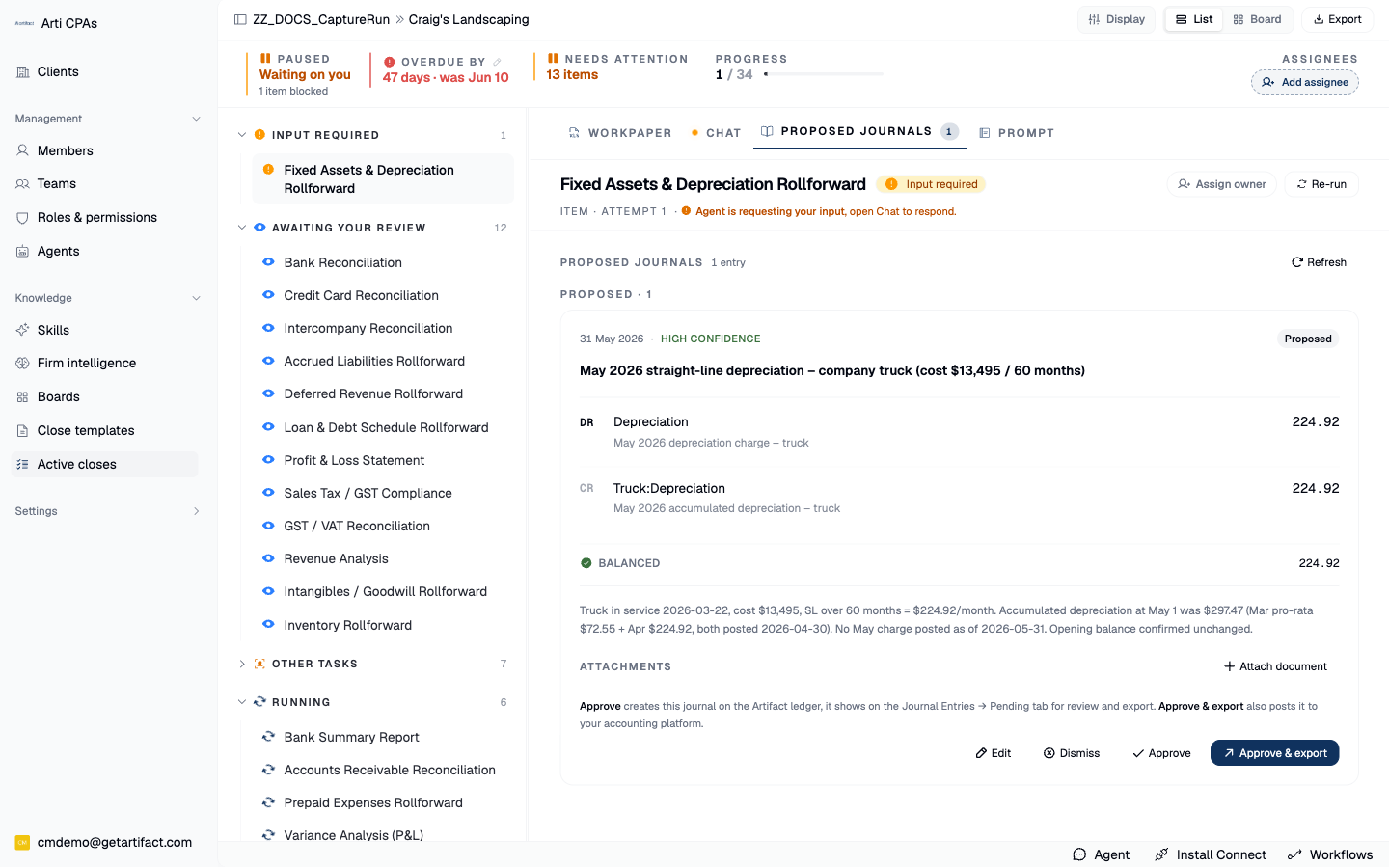
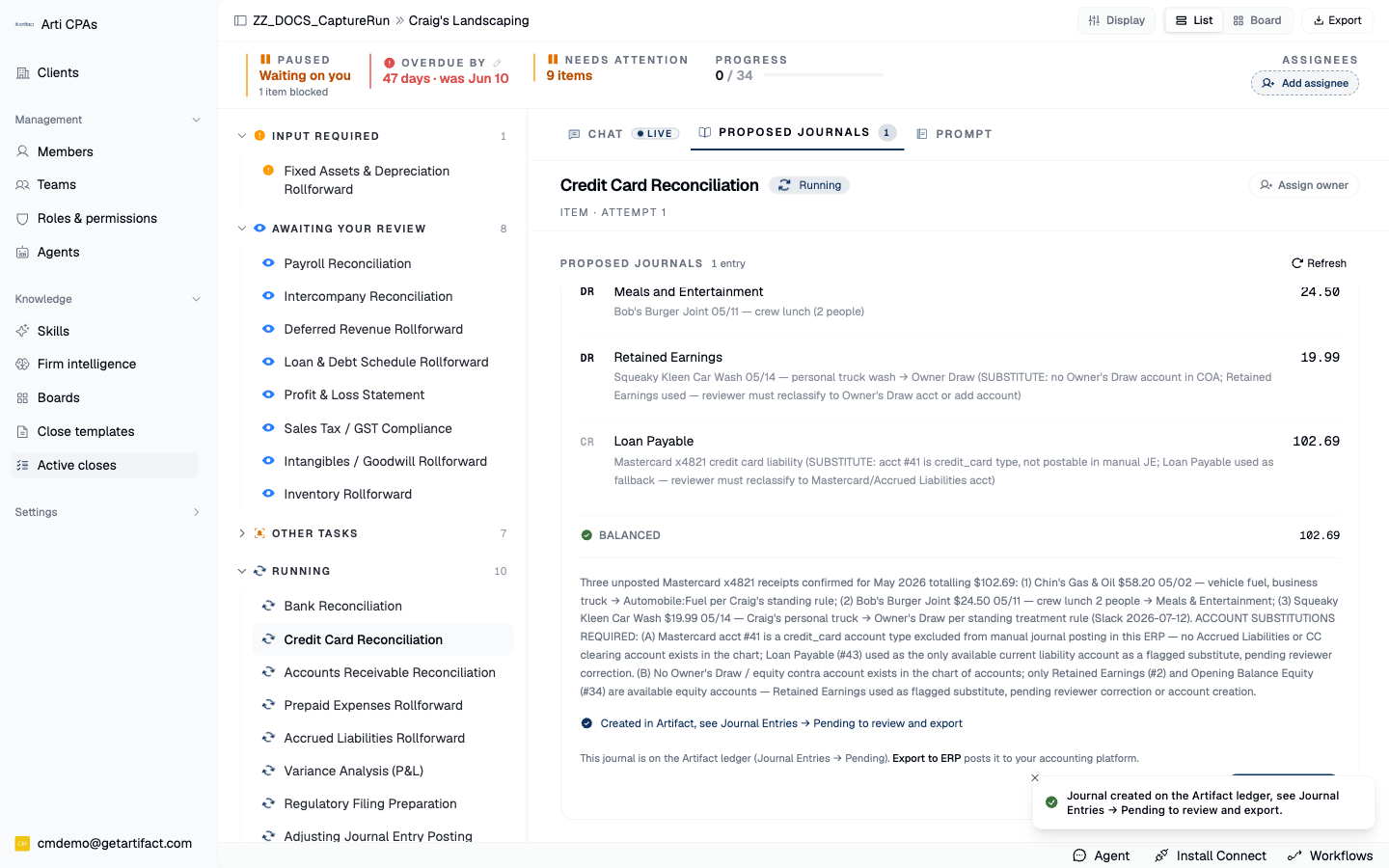
The item's PROPOSED JOURNALS tab is the JE gate: Approve / Approve & export / Dismiss /
Edit + a per-line editor (Dr-Cr / Account / Tax / Amount / Dimensions / Add line). Approve creates the real JE in Artifact (proposed → created); Edit sends a
re-validated balanced line set; Dismiss requires a reason the post-close learning pass reads so the agent
stops re-proposing it. Approve & export is the literal seam into Phase 4.
6. Tie out the workpaper
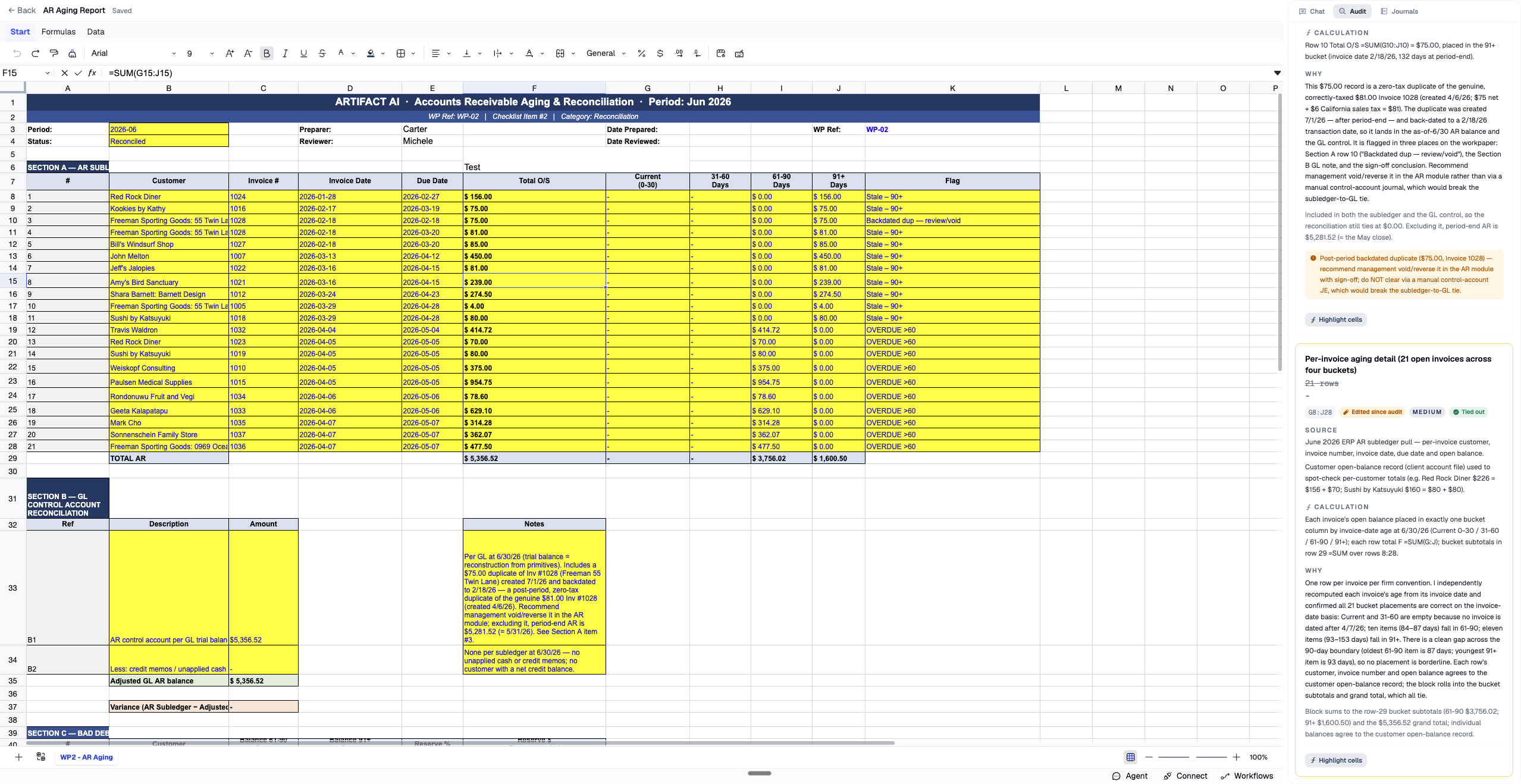
Open the item's workpaper; read each figure's provenance (source · calculation · rationale · tie-out status · materiality) in the audit side panel, and edit a cell to correct it. Editing an audited cell marks it "edited since audit" — and that correction is the training signal the post-close learning pass folds into the item's durable learning (a clean approve with zero corrections is captured as a confirmation, so the agent reinforces what worked, not only what failed).
7. Complete the close
Header → Complete close → completion mode. The close cannot complete until every item is Completed and zero failed; completing fires the post-close learning pass.
Next steps
- Start a month-end close
- Work a close item to completion
- Work multiple workpapers at once via Arti
- Review & approve a journal proposal
- Read a workpaper & its audit trail
- Create an ad-hoc workpaper
- Complete & export a close
Good to know
- Role: an accountant or reviewer seat on the business, with Close Management enabled.
- A configured close template. A close instantiates its items from a template that was authored once — build one via Establish a month-end close template and start a run via Start a month-end close. With no template there is nothing to start.
- Prepared journals. The proposed JE you approve here is the one prepared upstream in Prepare and validate journals; an item shows its proposed-journal gate only when it actually carries a proposed entry.
- Give the run a moment. The item pane, the proposed-journal gate and the populated workpaper appear once the close is open and its items have run — if everything still reads To do or Queued, you are early, not blocked.