Work a Close Item to Completion
Last updated: July 30, 2026
Take one close item from To do to Approved. You select it, read the instruction it runs, steer the agent if it needs steering, review the workpaper it produced, and sign it off yourself. Repeat per item; the close completes when they all have. This is the item-level detail under Run a Close and Approve Journals.
1. Open the close and pick your view
The close page is a header (status · Export · Complete close), a progress ribbon, the item rail, and the detail pane. The List / Board toggle flips the body between rail+pane and the board.
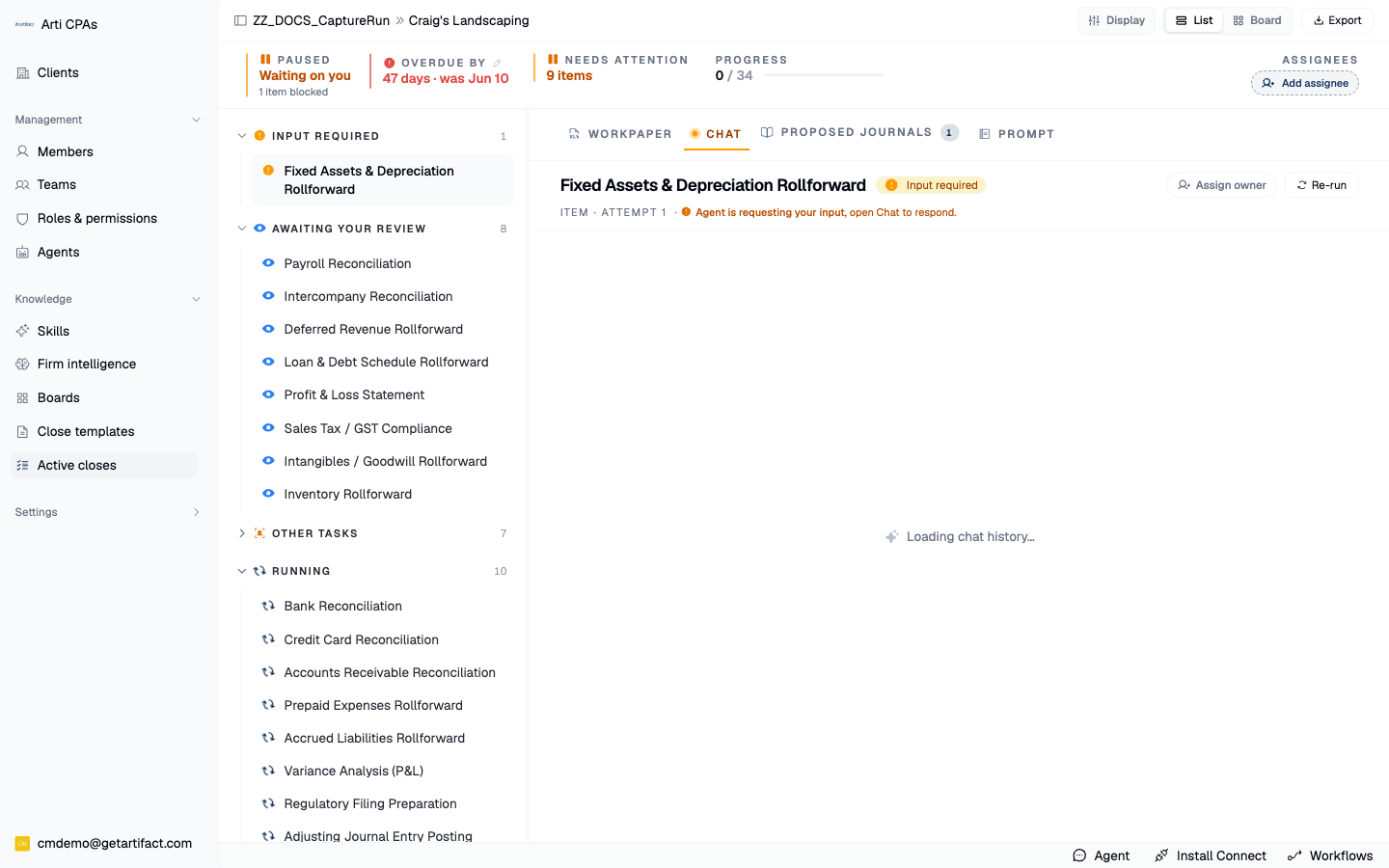
NB: Your side bar may look different. You can find this page in any active close.
The board shows the same items as a pipeline. Queued and In progress stay deliberately separate, so an item blocked on a dependency never masquerades as busy work.
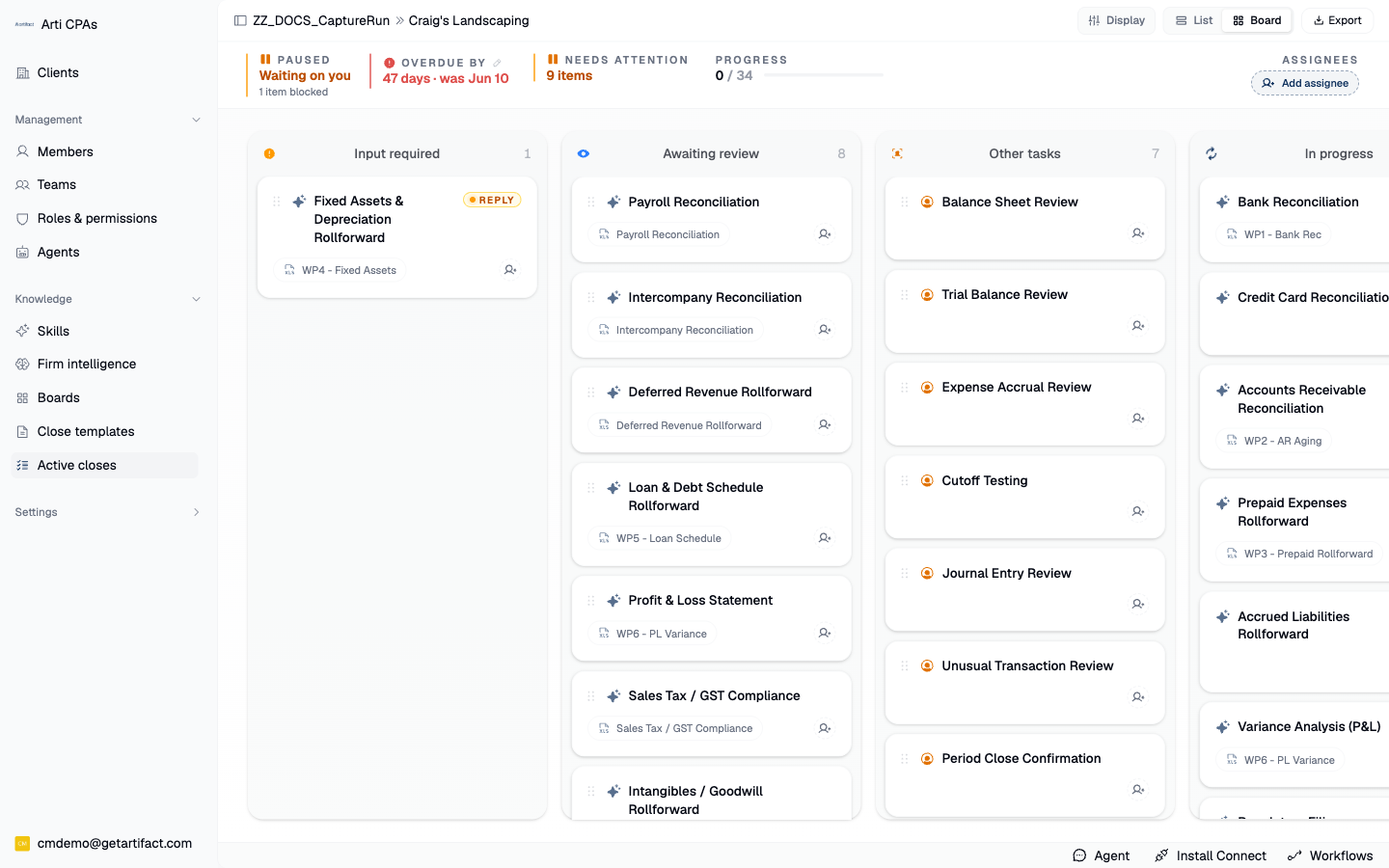
Clicking a card on the board opens that item as a modal rather than the side pane — the same detail, reached the board way.
2. Select an item
Click its row in the rail to load it into the pane. The pane's tabs are the whole job: Workpaper · Chat · Proposed journals · Prompt · Audit (a manual item shows Evidence instead).
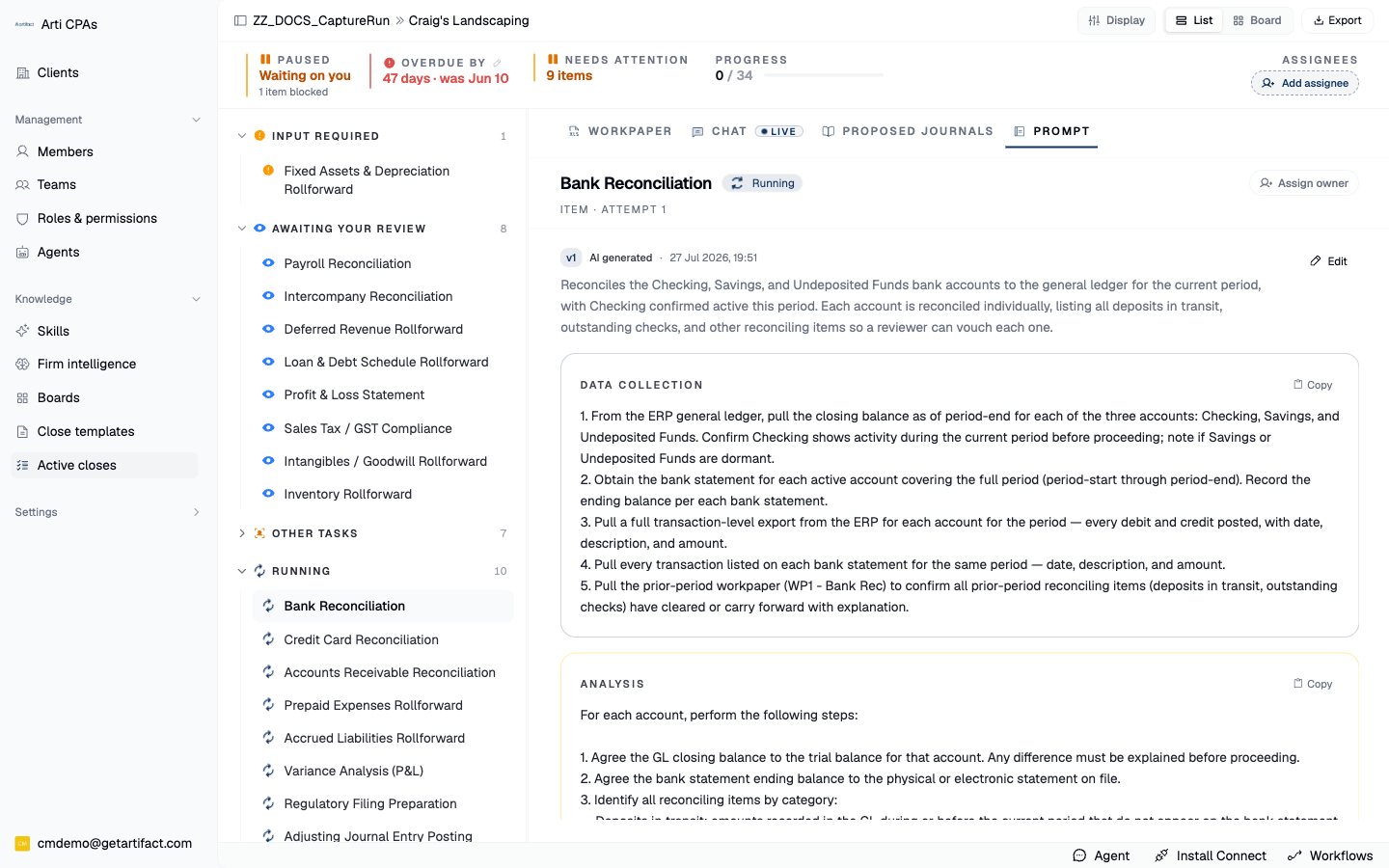
3. Read the Prompt tab before you judge the output
It shows the standing instruction this item runs — the prompt reviewed at template setup Step 4, in its editable sections. Editing here changes it for this close only, not the firm template. If the output is wrong, check and change the instruction.
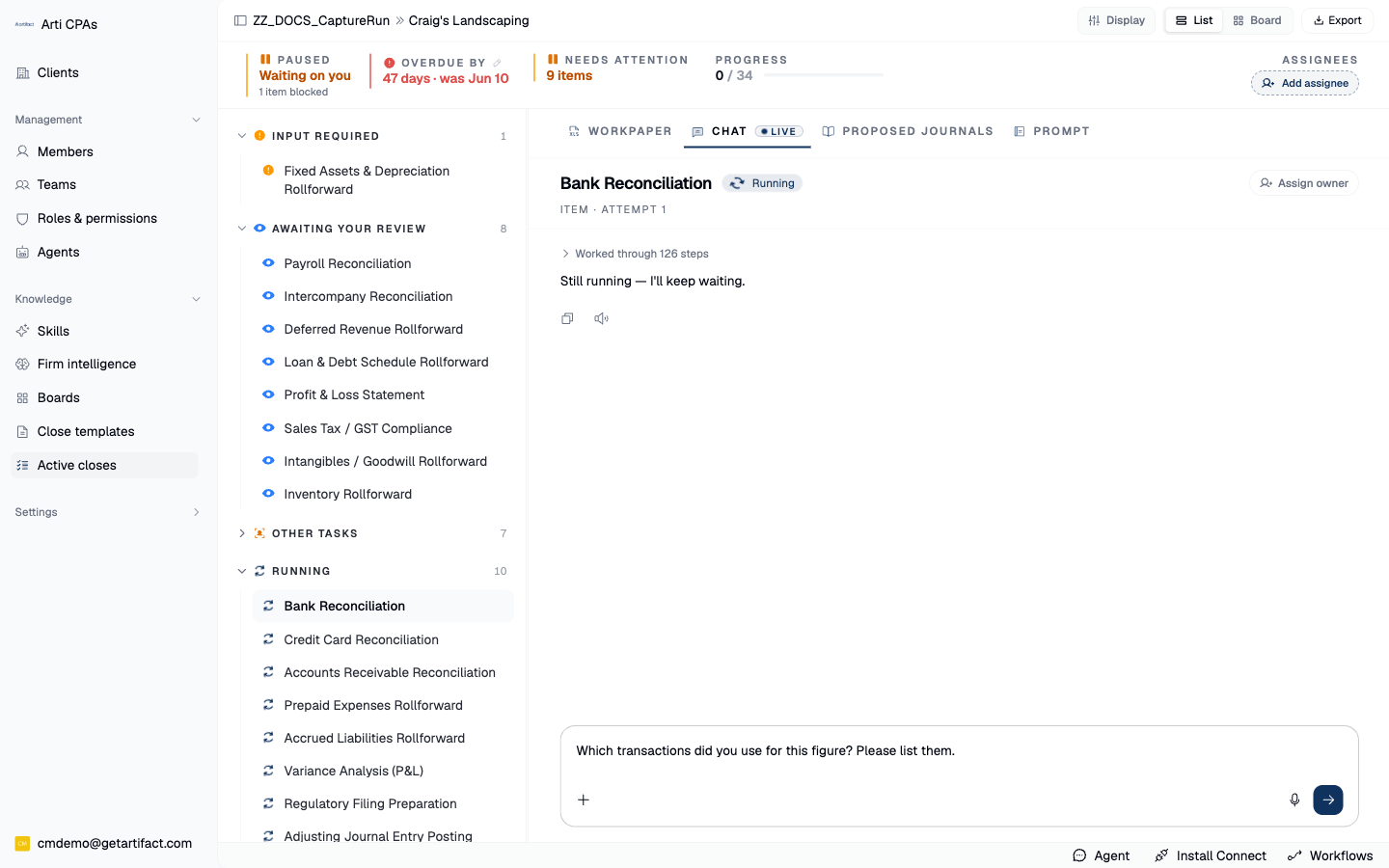
4. Steer the agent — Chat tab
Send posts your message and streams the reply. It runs inside the same agent session that prepared the workpaper, so "use the bank statement, not the feed" lands with full context rather than starting over. The chat input is hidden once an item is awaiting review — review is a different mode from preparation.
5. Answer a pause
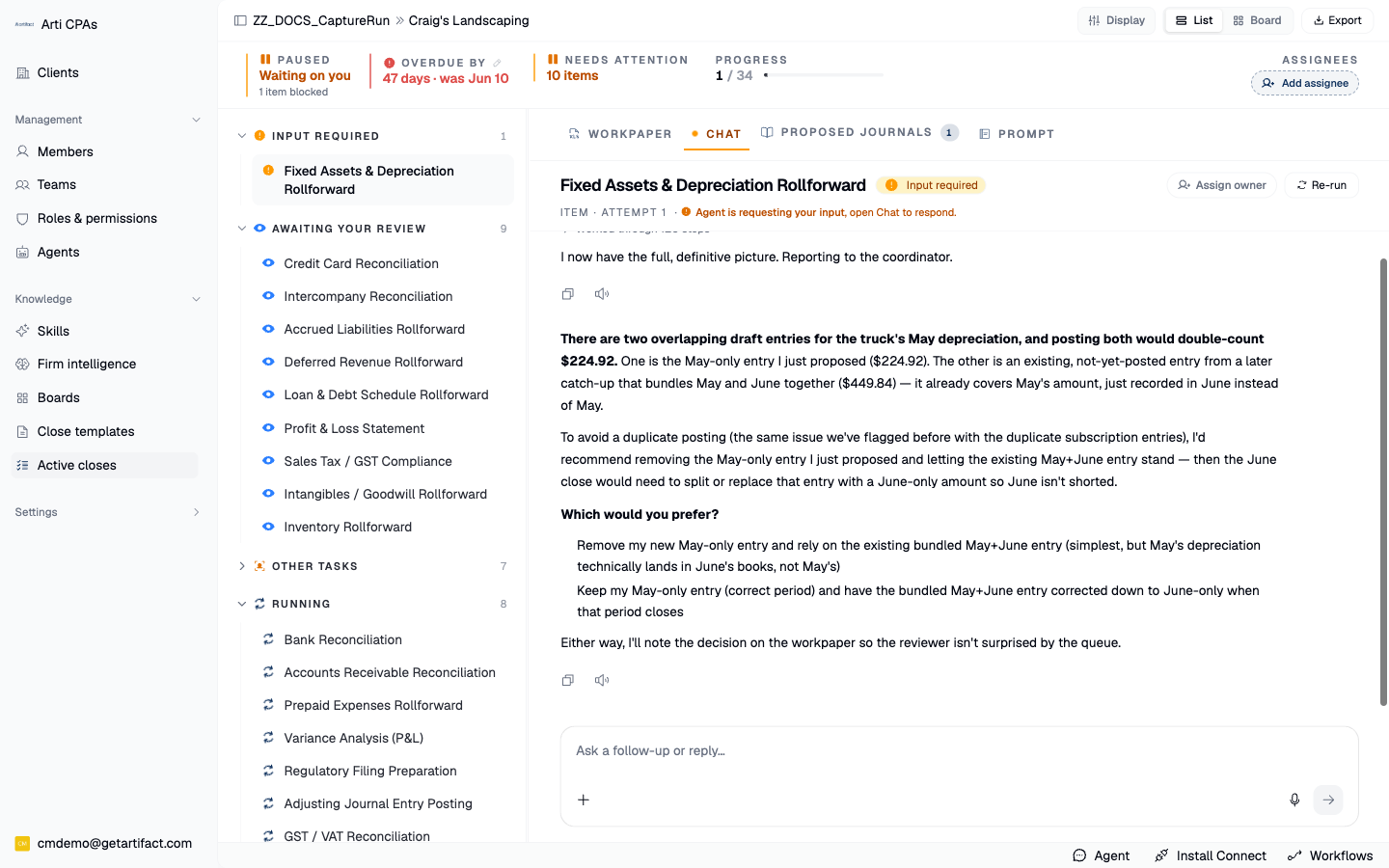
If the agent asks for something it cannot get, the item flips to input required — the highest-priority close state, because that run cannot proceed at all. The input panel takes text plus up to eight files; Send to agent uploads them and injects your reply as the answer, resuming the run. Deep-dive: Answer Arti When It Asks for Input.
6. Review the output
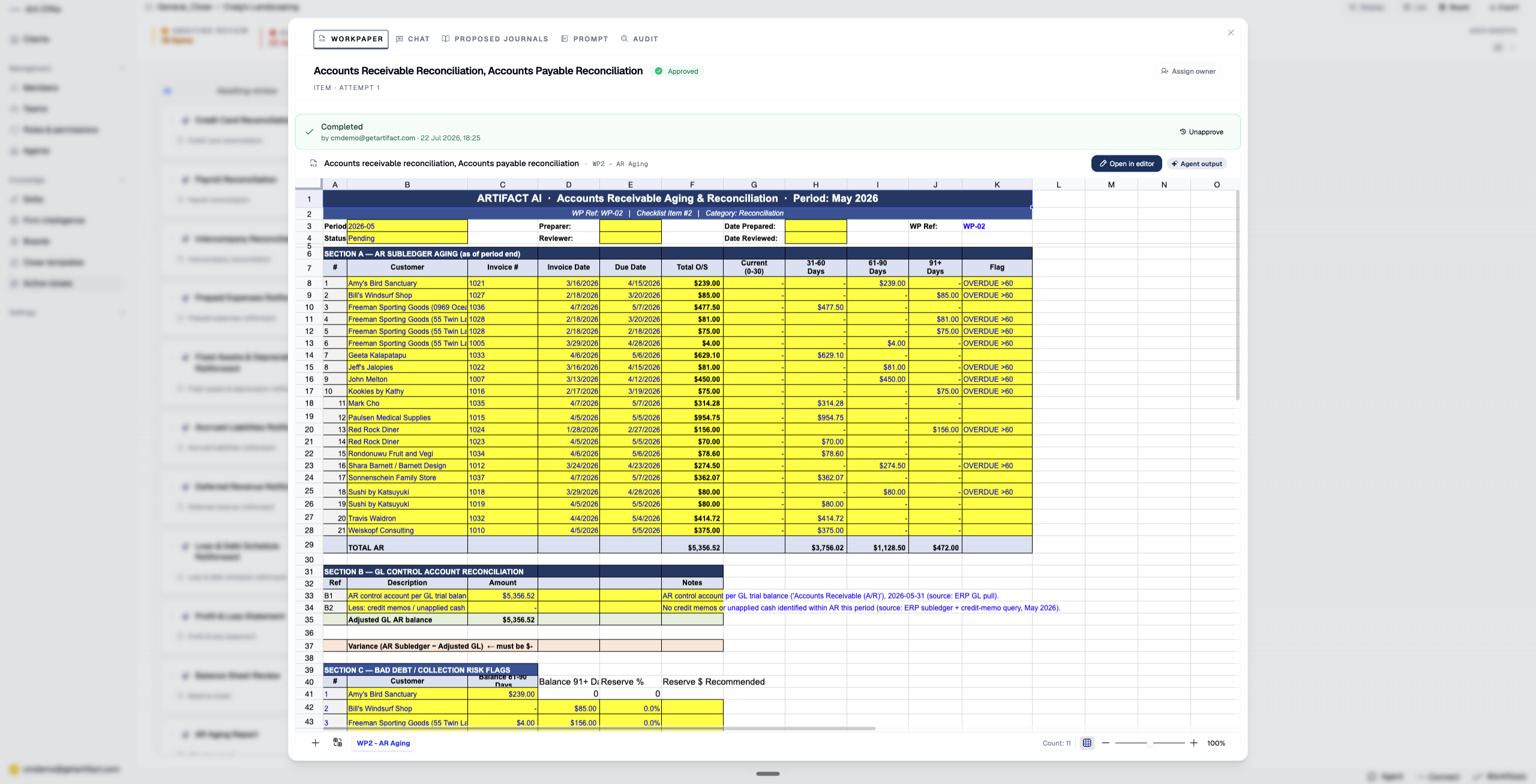
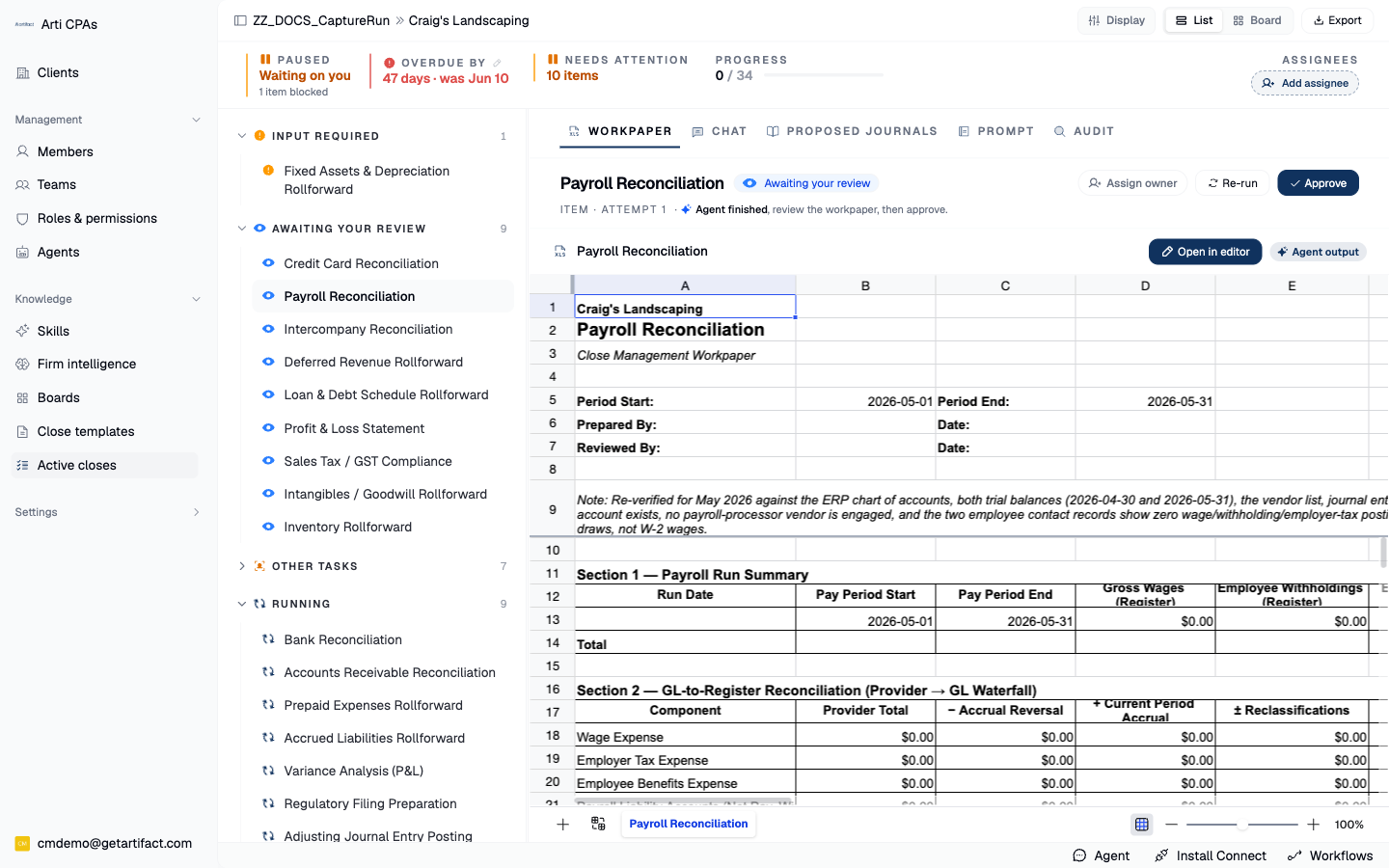
The Workpaper tab renders the generated sheet as a read-only preview, with Open in editor and Agent output beside it.
An AI item's tabs are Workpaper · Chat · Proposed journals · Prompt · Audit.
The Evidence tab appears on manual items, where it holds the files you attach to complete the step — evidence is period-specific and never carried forward.
Deep-dive: Read a Working Paper and Its Audit Trail.
7. Check how it got there — the Audit tab
The audit tree shows the steps the run actually took. Read it whenever a figure surprises you: an arithmetically-correct number you cannot trace is still not reviewable.
8. Approve — the human gate
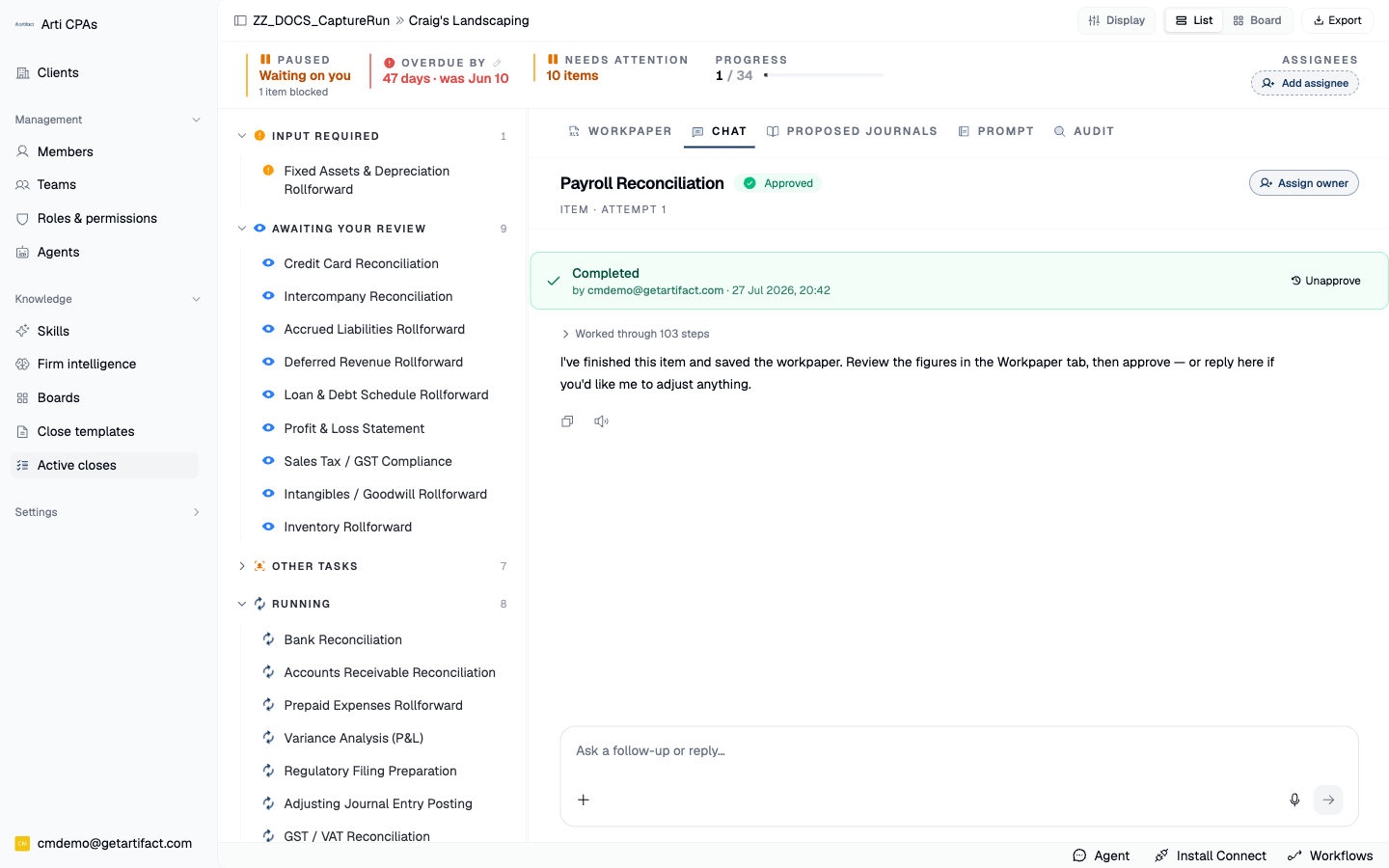
Approve: the item moves from Awaiting review to Approved, stamped with who approved it and when, and the progress counter advances. For a manual item, the same action is labeled Mark complete.
Unapprove reverses this only while the close is still under review.
Not ready yet? Re-run / Retry sends it back through the agent without approving — allowing a reviewer to request another pass instead of accepting a substandard one.
Where an action would cascade (such as re-running a paused item or an edit that triggers subsequent changes), a confirm-warning dialog appears first — the knock-on effect is always confirmed, never silent.
NB: If the item carries a proposed journal entry, approving the item is not the same as approving the journal — that is its own gate: review & approve a journal proposal.
Next steps
Good to know
Give the run a moment. Items move Queued → In progress → Awaiting review on their own. An AI run finishing does not complete the item — it parks it for you. If everything still says Queued, you are early, not blocked.