Work a Close from the Board View
Last updated: July 30, 2026
Work the close from the board — the pipeline view — instead of the list. The board shows every item as a card in a column, and you move work forward by dragging cards. The one thing to carry into it: a drag is not a view change, it is the action. Drop a card on Approved and you have signed the item off. This how-to is the board view of the same close you work item-by-item in Work a Close Item to Completion.
1. Switch to the Board and read the columns
The List / Board toggle flips the close body into a board: the same items as a pipeline — Queued · In progress · Awaiting review · Approved — with a Your tasks / Other tasks grouping so you can see what is yours at a glance. It is the same close as the list, shown a different way.
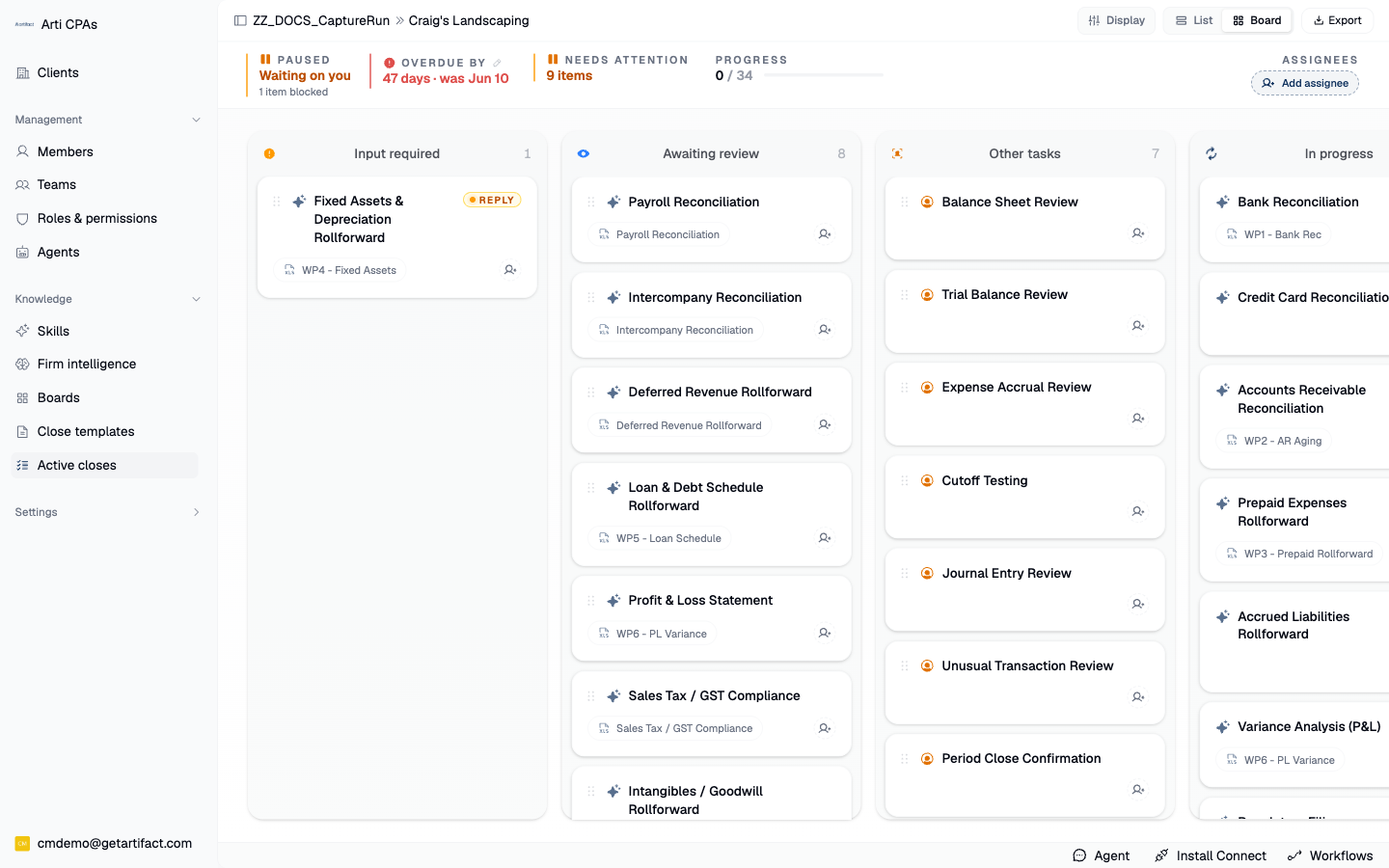
NB: Your side panel may look a bit different.
2. Open a card to read the item before you touch it
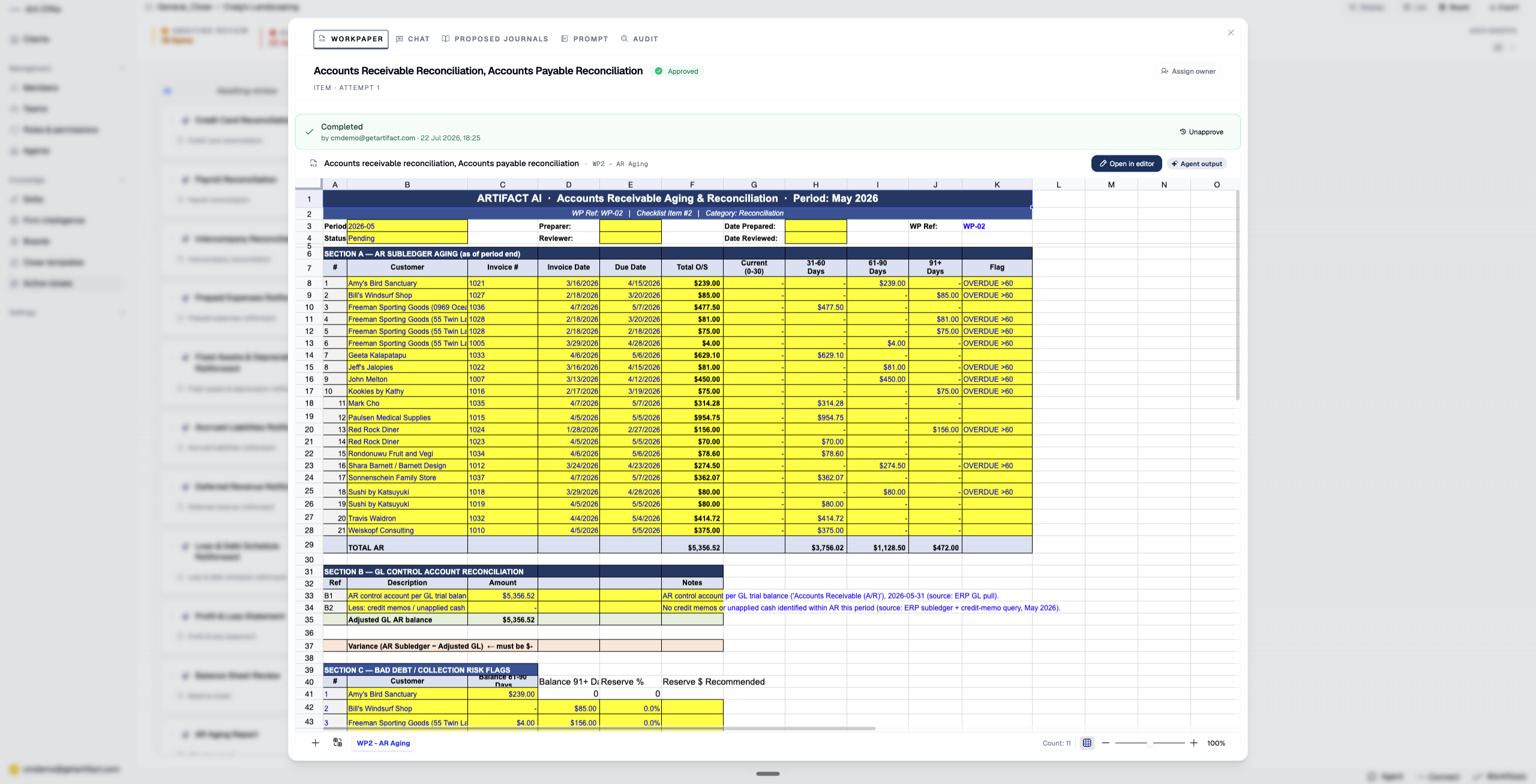
Clicking a card opens that item as a modal — the same tabs as the side pane (Workpaper · Chat · Proposed journals · Prompt · Audit), so you can read the workpaper and the audit trail without leaving the board. What each tab does is covered in Work a Close Item to Completion; dismiss the modal to return to the board.
3. Drag to approve or unapprove — the drag is the write
Dropping a card onto the Approved column approves the item, exactly as pressing Approve in the pane would, stamping who approved it and moving the progress counter. Dropping it back onto Awaiting review unapproves it. There is no second confirm and no undo prompt — the drop performs the sign-off.
4. Drag onto Queued to re-run — here a confirm does stand in the way
Dropping a card onto Queued sends the item back through the agent. Because that discards the current result, a Re-run confirm dialog (Re-run / Cancel) appears before anything fires — the one board drag that asks first, because it throws work away.
5. Reassign from the board
Drag a card onto the Your tasks or Other tasks column, or use the on-card assignee picker, to change who owns an item without opening it. Assignment changes who, not the item's status.
Next steps
Good to know
⚠ A drag performs the action — there is no separate save. Dropping a card onto a column does the thing that column means: Approved signs the item off, Awaiting review pulls an approval back, Queued sends it back through the agent (with a confirm), and Your tasks / Other tasks reassign it. So do not drag a card to tidy the board or to peek — a stray drop onto Approved is a real sign-off with your name on it. To just read an item, click the card (it opens a modal); drag only when you mean to act.