Assign a Close and Its Items to Your Team
Last updated: August 11, 2026
Assign a close and its items to your team
Staff a close deliberately — decide who does what. Assignment is not one screen: you can set owners when you start the close, change close-level ownership from the summary ribbon, assign a single item to one person, and designate who reviews — which is a firm-level role, not a picker on the close. This how-to pulls those together so a firm lead can put a named owner on every piece of work (running a close, Review, sign-off & the human-in-the-loop control).
1. Assign owners when you start the close
The Start-close dialog has an assignee picker — Add member / Add another — for the people who own the whole close; each becomes a removable chip. No members on the business yet? The picker shows a Manage teams → link instead. Full start flow: Apply a Template to Month End Close.
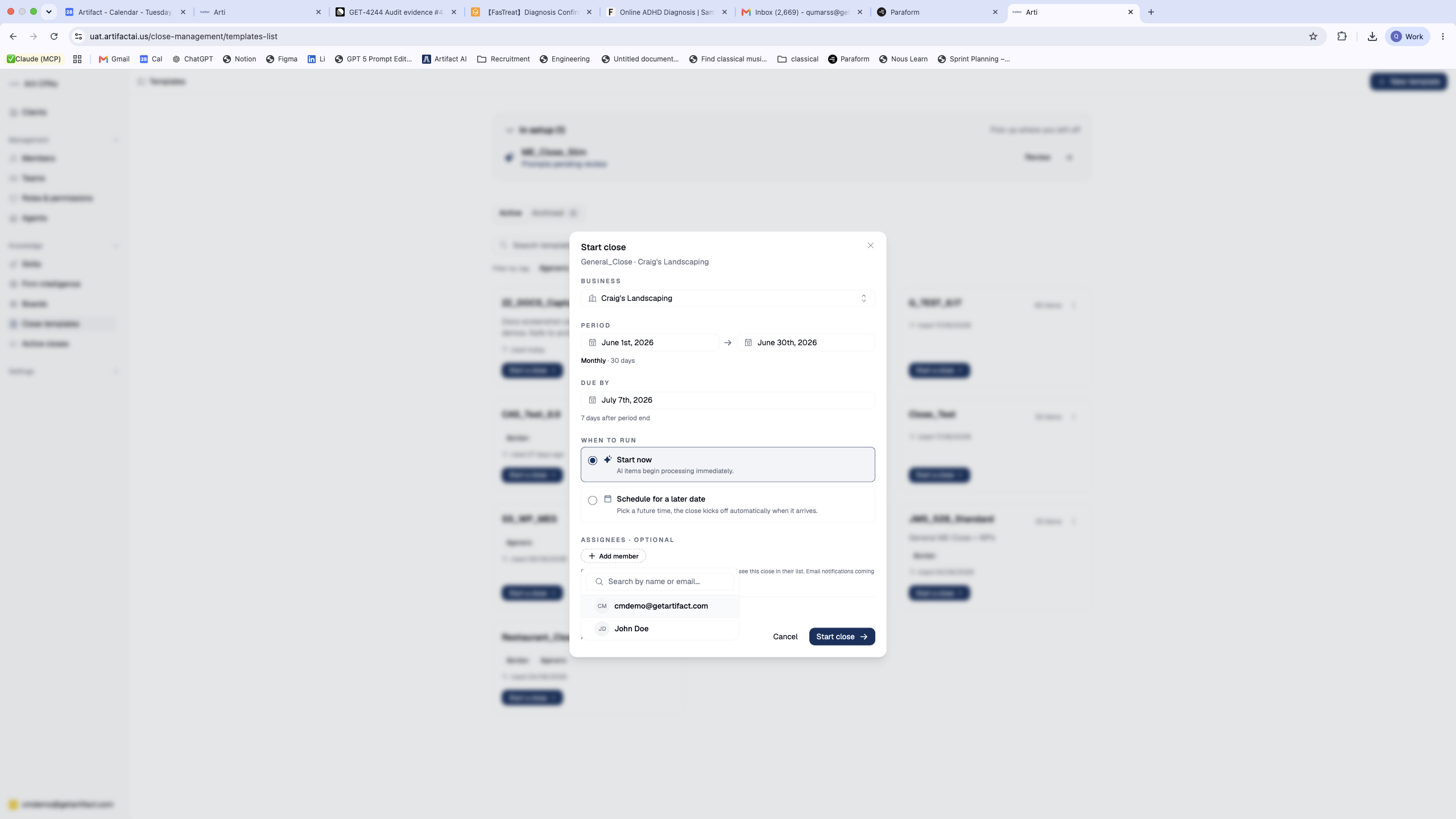
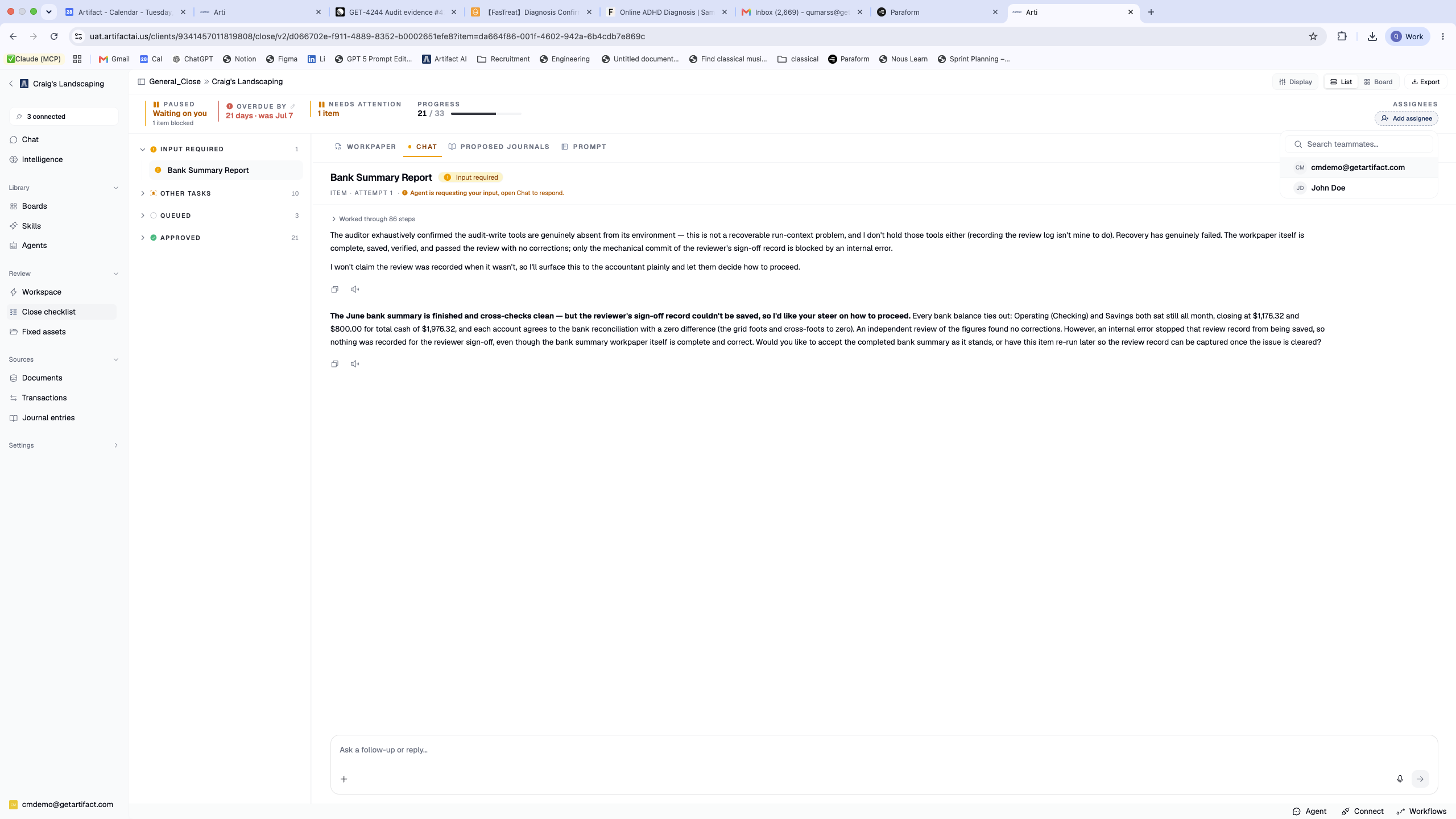
2. Assign or reassign the whole close later — the summary ribbon
The ribbon carries an assignee stack with Add assignee, so close-level ownership can change after the close is running, not only at start.
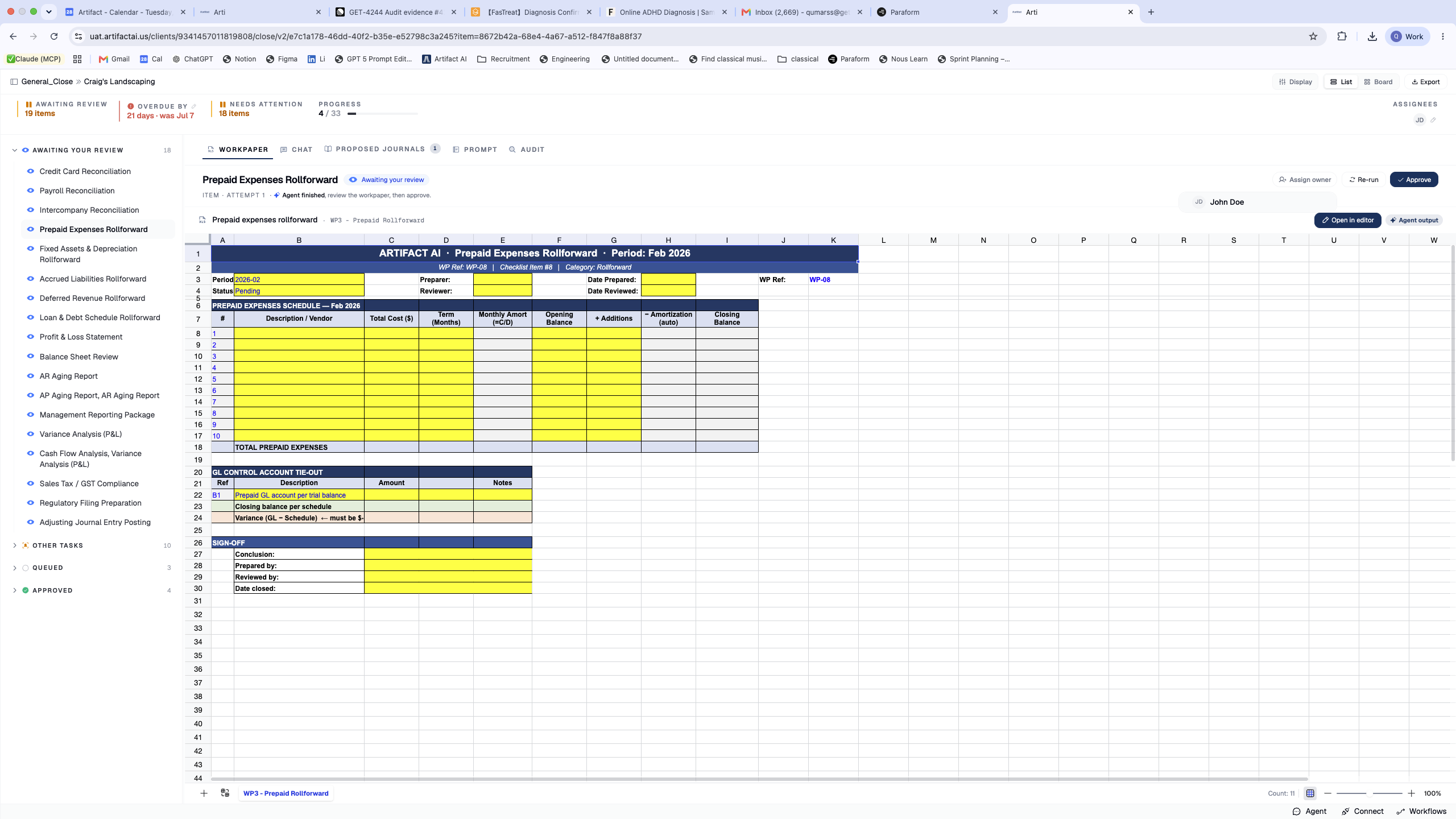
3. Assign a single item to one person — the item pane
Each item's header carries its own Assign owner control; Unassign in that menu removes the owner. The same per-item assignment is available from the board's on-card picker — see Work a Close from the Board View.
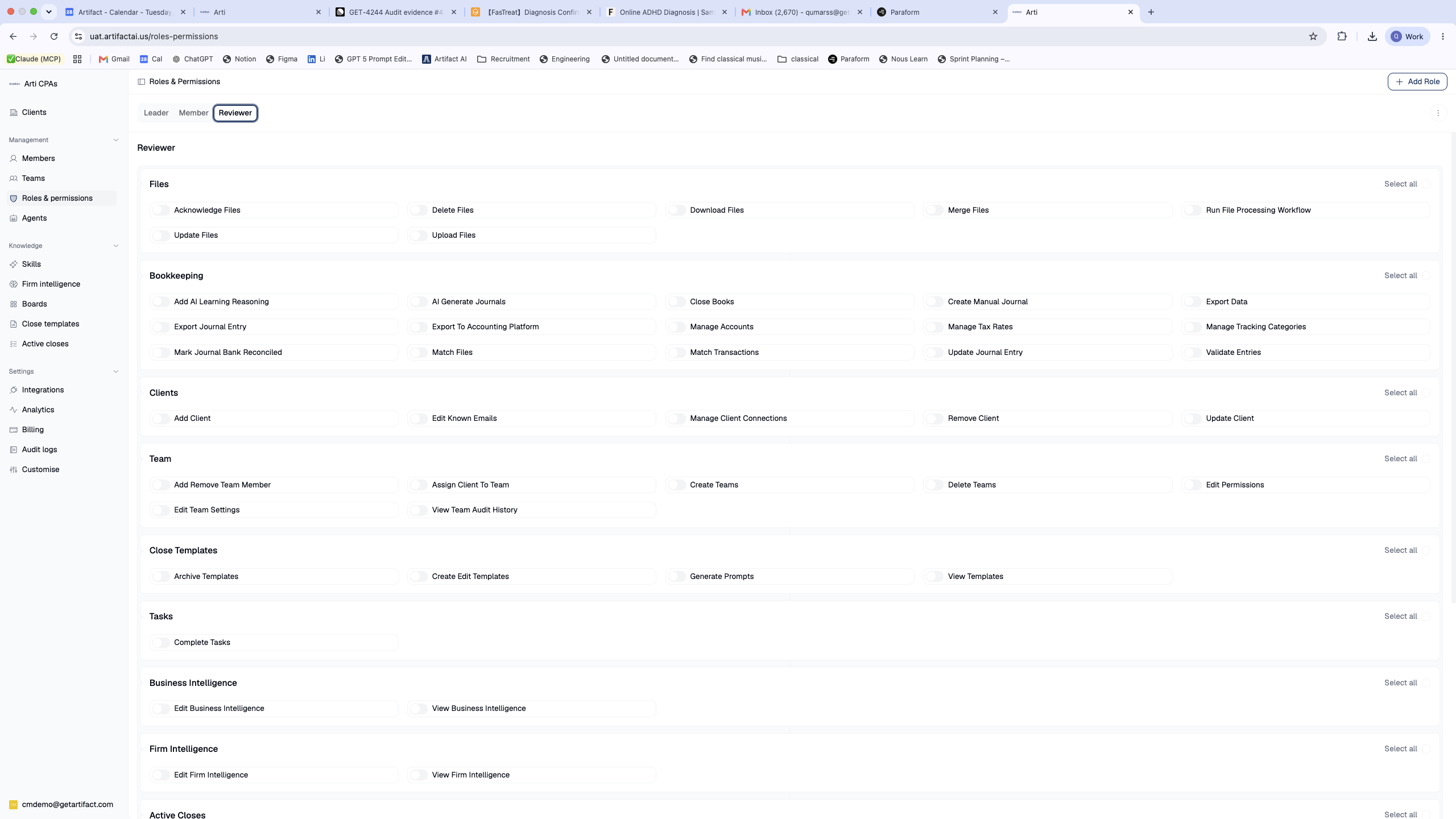
4. Designate who reviews — a Reviewer role, not a picker
There is no "pick a reviewer" control on the close itself. Instead, at firm level open Roles & Permissions and create (or reuse) a custom Reviewer role — a named set of permissions — then put the people who sign work off into that role. Assignee (who does the work) and reviewer (a role) are set in different places, which is why there is no reviewer box on the close.
Next steps
Good to know
- Prerequisite: a close (either being started or already running) and team members who have access to the business. No members yet? The assignee pickers show a Manage teams → link — add people there first. Starting a close is covered in start a month-end close.
- Role: typically a firm admin or lead — who-does-what is a staffing decision.
- Assignment changes who, not what. Assigning or reassigning an item does not change its status or its result; it only changes whose queue it sits in.
- Reviewer is a role, not a picker. There is no dedicated "choose a reviewer" control on the close. Who may review is governed by a firm-level Reviewer role (Step 4) — separate from the assignee who prepares the work.